If you’re deploying a HANA DB module (HDI container) from SAP Business Application Studio (BAS) and your deploy fails with:
Error: Option parameter is not supported by the server; based on detected server version unknown
This usually means your deploy tool can’t “talk” to the HANA server properly, so it can’t detect the server version and then refuses to use certain deploy options.
The good news: the fix is simple.
What’s actually happening (in easy words)
Your DB deploy is done by a tool called @sap/hdi-deploy.
To connect to HANA and detect server features, @sap/hdi-deploy needs a database driver:
@sap/hana-client (official client) OR
hdb (Node.js driver)
If no driver is installed, the deployer can’t detect your HANA/HDI version, so it prints:
server.version = "unknown"
container-api-version = -1
hdi-version = -1
And then when your deploy includes an “option/parameter”, it fails with the message you saw.
Step 1: How to confirm the issue (get server.version = "unknown")
In BAS terminal, go to your db module folder and run:
cd db node node_modules/@sap/hdi-deploy/deploy.js –info all
If the issue exists, you’ll see something like:
server.version: “unknown”
container-api-version: “-1”
hdi-version: “-1”
That is the clear sign: deployer cannot connect and detect server capabilities.
Step 2: Fix it by installing a DB driver (recommended solutions)
Option A (Recommended): Install @sap/hana-client
This is the standard/default driver many setups use.
cd db npm i –save @sap/hana-client npm i
Now verify again:
node node_modules/@sap/hdi-deploy/deploy.js –info all
✅ After this, the server section should show a real version (not “unknown”).
Option B (Safe fallback): Install hdb and force deployer to use it
If you prefer the pure Node.js driver (or if your setup works better with it):
cd db npm i –save hdb npm i
Then run:
node node_modules/@sap/hdi-deploy/deploy.js –use-hdb–info all
✅ Now you should see a real server version and HDI versions.
Step 3: Clean reinstall (helps if BAS has messy node_modules)
If you installed the driver but still see “unknown”, do a clean reinstall:
cd db rm-rf node_modules package-lock.json npm install
Then rerun:
node node_modules/@sap/hdi-deploy/deploy.js –info all
Step 4: Deploy again
After the driver install + server version is visible, redeploy your project (MTA deploy / CF deploy / BAS deploy flow).
At this point, the error usually disappears immediately.
Extra Fix (Workaround): Remove --parameter from deploy command if present
Sometimes your deploy task/script contains something like --parameter ....
If the deployer can’t confirm server support, it blocks.
So if you see something like this in scripts or BAS tasks:
--parameter xyz=...
Try removing it and redeploy.
(But the real fix is still installing the driver, because “server unknown” is the main problem.)
Extra Check: Make sure BAS is actually bound to the HDI container
Your VCAP_SERVICES should show something like:
plan: "hdi-shared"
with schema, user, hdi_user
If that’s missing, the deployer may not have credentials to connect.
Quick checklist (copy-paste section)
✅ Run:
cd db node node_modules/@sap/hdi-deploy/deploy.js –info all
If you see server.version = unknown then:
✅ Install a driver:
Option A
npm i –save @sap/hana-client
Option B
npm i –save hdb
✅ Clean reinstall if needed:
rm-rf node_modules package-lock.json npm install
✅ Verify again:
node node_modules/@sap/hdi-deploy/deploy.js –info all
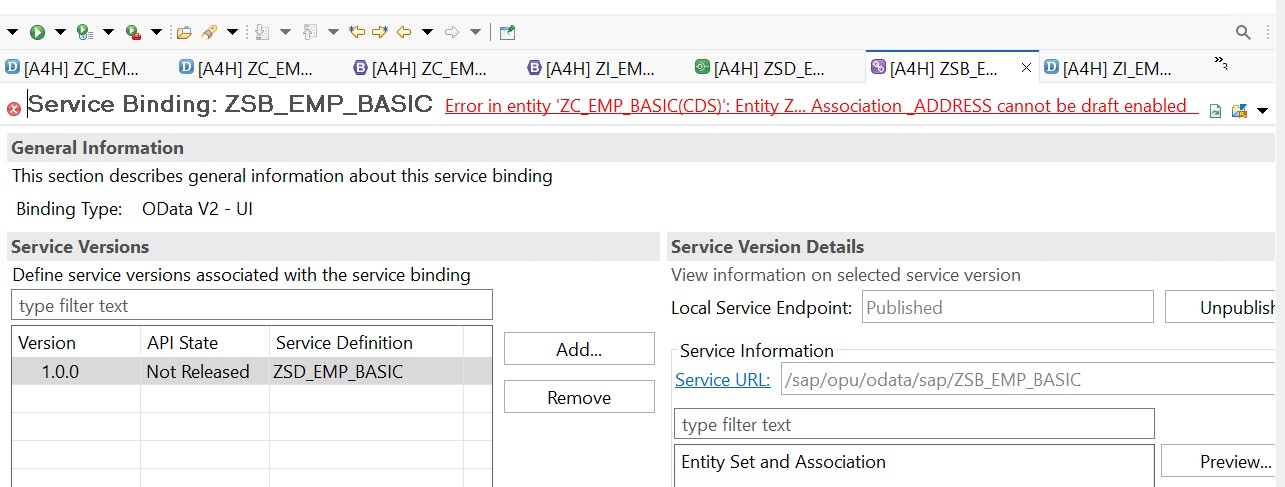
Step 01: Start from your Behaviour Definition [both consumption/projection view as well as I view] and check if the draft is enabled everywhere as required.
Step 02: If you have enabled draft at every association level using {with draft;} and still not able to fix it, then visit each CDS file linked with the Behaviour definition and try to hove over all the yellow underlines and fix them [by clicking right click and choosing “Quick Fix”]
Step 03: Also, check if you have missed adding etag master at the association level behaviour definition.
Step 04: Try to change the cardinality from [0..*] to [0..1] and then try to activate the Service Binding again.
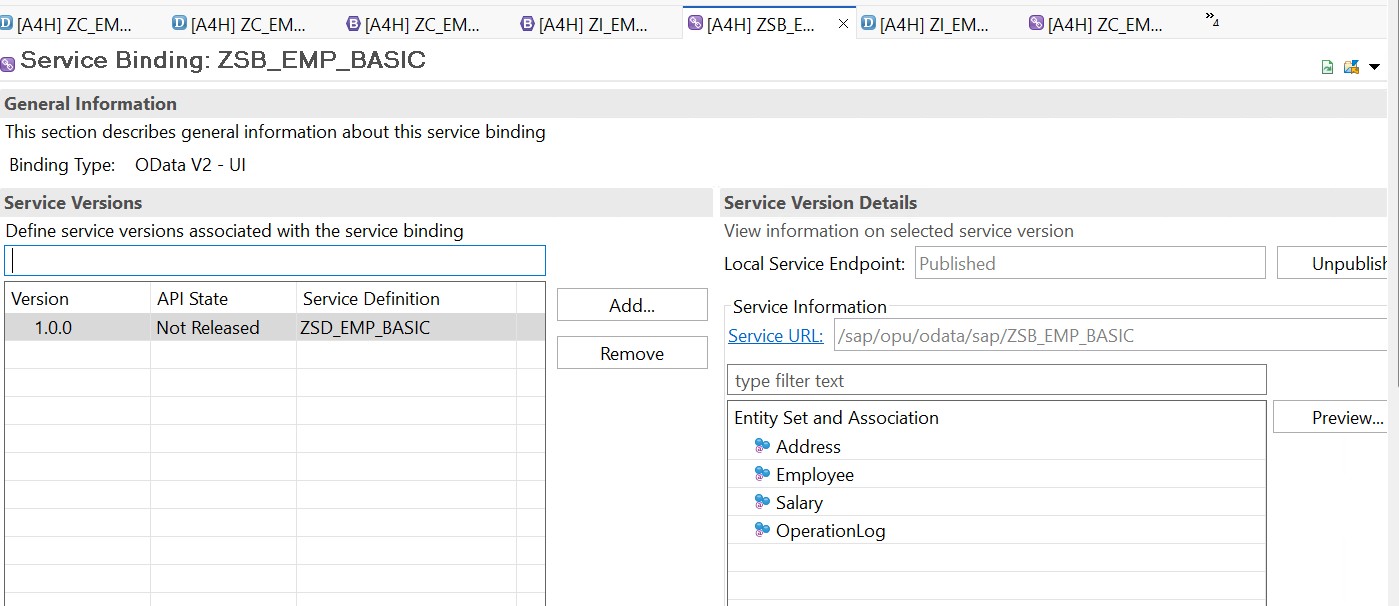
If the above steps are fine, and you try to refresh the screen and activate the screen, you will see the success screen as below:
Check out our in-depth guide to ABAP Core Data Services (CDS) for SAP HANA. This PDF walks you through CDS basics, syntax, annotations, and more advanced stuff like RAP integration, performance tweaks, and even machine learning examples. It’s great for SAP developers and architects, packed with real-world examples, easy-to-follow tutorials, and hands-on exercises to help you build SAP Fiori apps, run analytical queries, or create cloud-ready solutions. Grab it now from gocoding.org to level up your SAP skills and make data modeling with CDS a breeze.
Welcome to the innovative solution for finding electric vehicle (EV) charging stations. An electric vehicle will be the only vehicle everyone will be driving in the future. In that case, every driver will search for a nearby EV charging station. Therefore through this article, we will build a simple iframe based EV charging station finder or locater using SAP UI5.
This user-friendly application utilizes the power of SAP UI5 technology to provide a seamless and efficient way for EV owners to locate charging stations near their location. With up-to-date information on the availability and status of charging stations, you can easily plan your trips and ensure that you always have access to a charging point when needed. Get started now and discover the convenience of finding your next charging station with just a few clicks!
Methods To Build EV Charging Station Finder Or Locater Using SAP UI5
We can build our locator app in multiple ways, three among them are:
1. Using Google Maps: Here, we will showcase what is already over Google Maps via Google Maps API Integration.
2. Using Manual Entry: Here, we will have to gather data, create Map either via SAP Maps or Google Maps and plot our manually added data on top of the map.
3. Embedding multiple maps from different sources: Here, we will reuse the maps already created by different 3rd party and Government portals.
In this project, we will explain the 3rd way of creating an EV Charging Station finder or locator using SAP UI5.
sap.ui.define([

"sap/ui/core/mvc/Controller"

], function (Controller) {

"use strict";

return Controller.extend("EVMap.EVMap.controller.Map", {

onSelectUSA: function (oEvent) {

this.getView().byId("pageContainer").to(this.getView().byId("pageUSA"));

},

onSelectEU: function (oEvent) {

this.getView().byId("pageContainer").to(this.getView().byId("pageEU"));

},

onSelectIndia: function (oEvent) {

this.getView().byId("pageContainer").to(this.getView().byId("pageIndia"));

}

});

});
Output
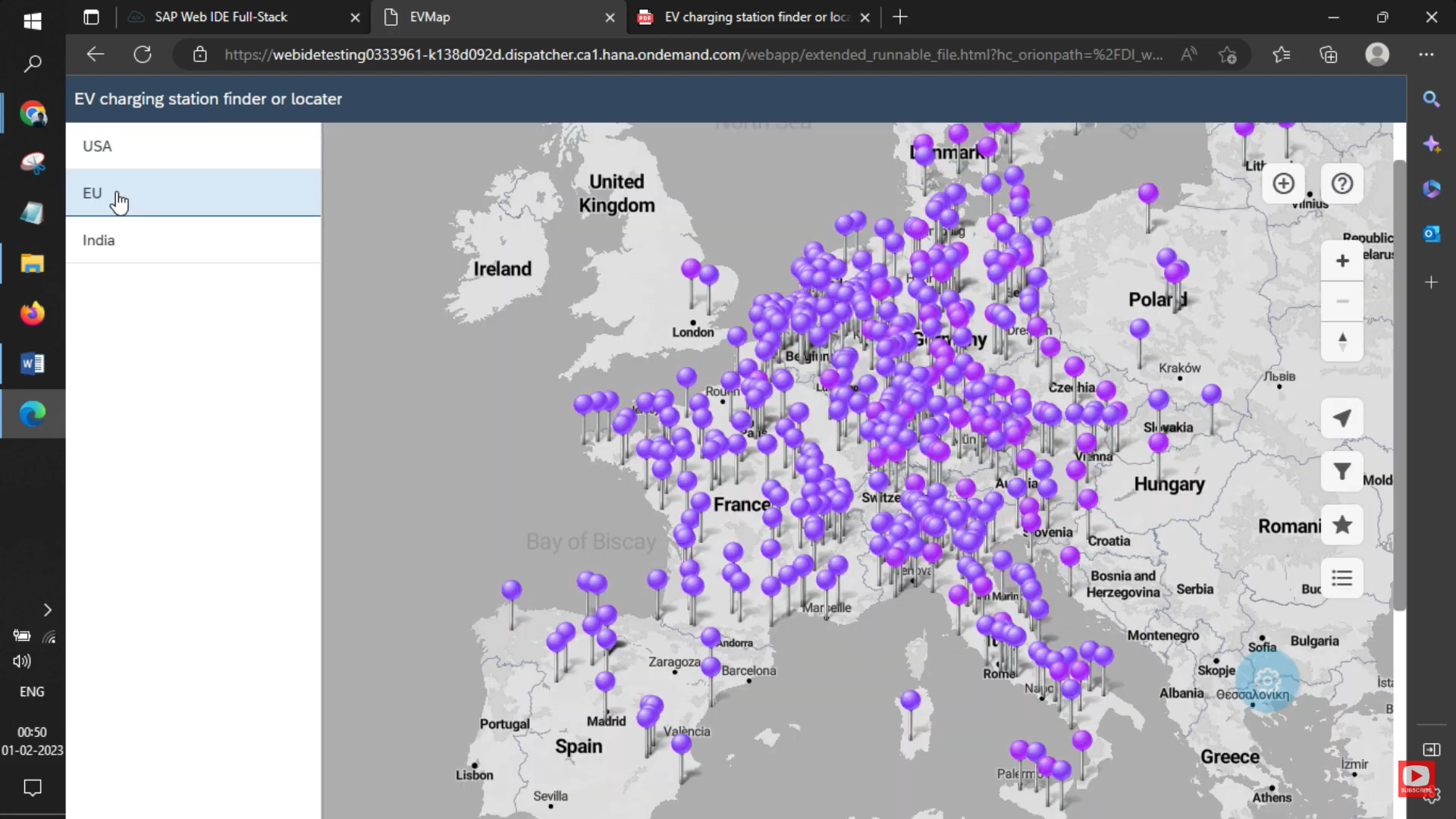
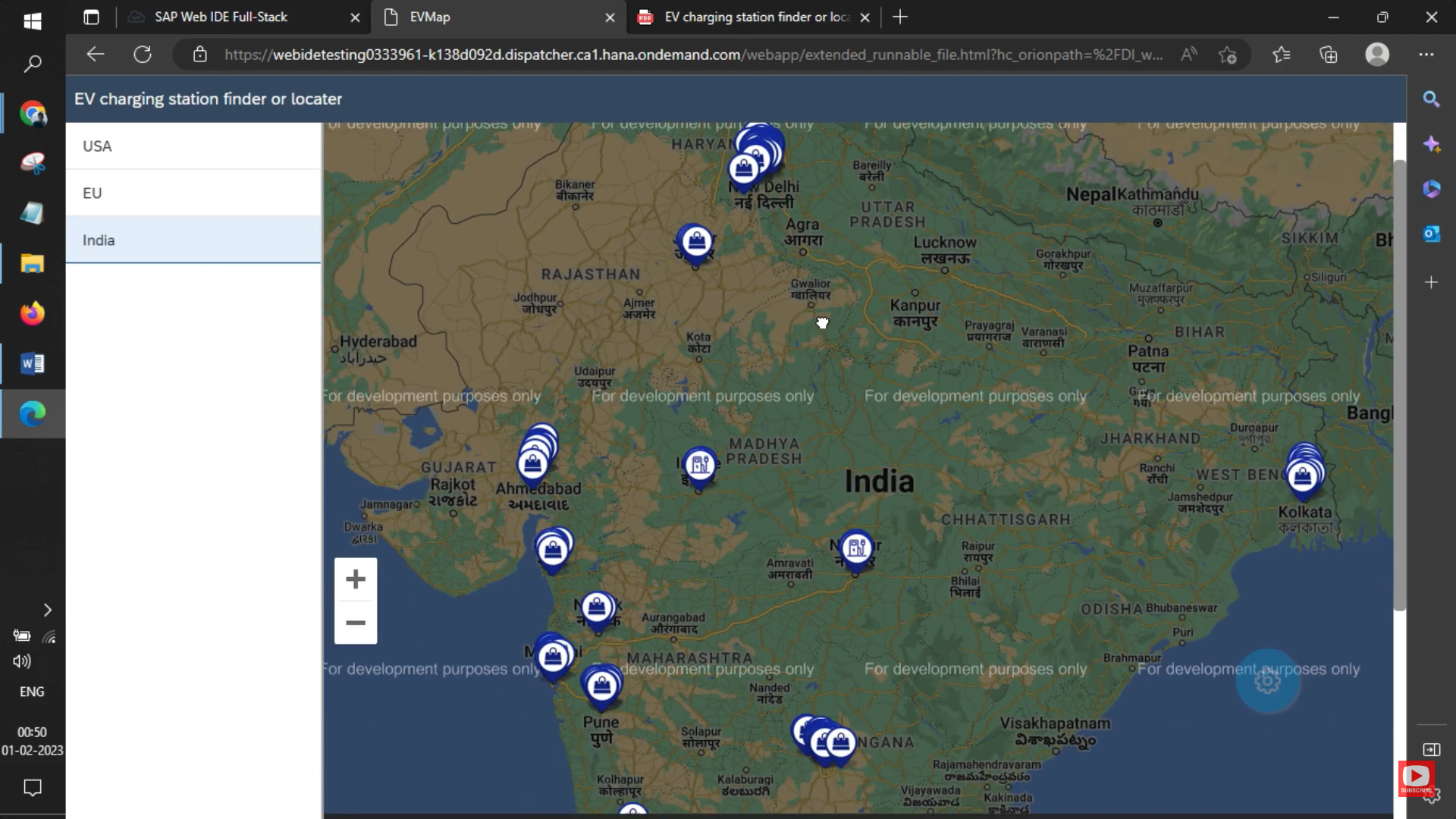
We have successfully built this EV Charging Station Finder or Locater Using SAP UI5. You will get the following output as shown below.
USA
European Union (EU)
India
Key Points To Remember
We have just demonstrated a simple project for your understanding. You can improve the UI/UX and other functionalities of this application. Here are some key points to keep in mind while building an EV Charging Station Finder using SAP UI5:
User Experience: Ensure that the application is user-friendly, intuitive, and easy to navigate. This will help users find charging stations quickly and efficiently.
Data Accuracy: The application should use accurate and up-to-date data on the availability and status of charging stations. This will help users plan their trips and avoid wasting time at non-functional charging stations.
Integration with Maps: Integrating the application with a mapping service, such as Google Maps, can provide users with a visual representation of the location of charging stations. This will help users easily find their desired charging station.
Real-Time Availability: The application should have real-time information on the availability of charging stations so that users can check for the current status of a charging station before reaching it.
Responsiveness: The application should be responsive, meaning it should adjust to different screen sizes and work seamlessly on different devices such as smartphones, tablets, and desktops.
Security: Ensure that the user data and payment information are secure and protected from potential cyber threats.
Performance: The application should be fast, efficient, and scalable to handle large amounts of data and traffic.
By keeping these key points in mind, you can build an effective and user-friendly EV Charging Station Finder using SAP UI5.
Improve your data collection and insights with Qualtrics Surveys integration in SAP UI5 or your website. Our seamless integration makes it easy to add powerful surveys to your platform, allowing you to gather valuable feedback and insights from your users. With Qualtrics, you can get a comprehensive understanding of customer satisfaction, market trends, and much more.
Requirements
The following are the prerequisites to perform Qualtrics integration in SAP UI5 or any website:
Qualtrics Account: To integrate Qualtrics surveys into your UI5 or website, you must have a Qualtrics account.
Access to UI5 or Website Code: To integrate Qualtrics into your UI5 or website, you must have access to the code for your platform.
Familiarity With Qualtrics API: A basic understanding of Qualtrics API is required to perform the integration.
Basic Knowledge of HTML, CSS, and JavaScript: You should have a basic understanding of these technologies to integrate Qualtrics into your UI5 or website.
Development Environment: You will need a development environment to test the integration before deploying it to your production environment.
Different Types of Qualtrics Integration
There are several types of Qualtrics integration, including:
1. Embedded Surveys: Qualtrics surveys can be embedded directly into a website or application using an iFrame or JavaScript code.
2. REST API Integration: The Qualtrics REST API allows developers to integrate Qualtrics surveys and data into their own systems and applications.
3. Webhooks Integration: Webhooks can be used to trigger events in other systems based on specific actions taken in Qualtrics.
4. Single Sign-On (SSO) Integration: Qualtrics supports SSO integration to allow users to log into Qualtrics using their existing credentials.
5. Zapier Integration: Zapier is a platform that enables integration with other applications and services. Qualtrics can be integrated with Zapier to automate workflows and data transfer between applications.
6. Salesforce Integration: Qualtrics integrates with Salesforce to allow users to collect and analyze customer feedback data directly within Salesforce.
7. Marketing Automation Integration: Qualtrics integrates with several marketing automation platforms to provide a unified view of customer data and insights.
These are just a few examples of the different types of Qualtrics integration available. The specific type of integration you choose will depend on your specific needs and requirements.
2. Click on the “Create Survey / Project” button to start a new survey.
3. Choose a survey type and select a template, or start from scratch.
4. Customize your survey by adding questions, formatting, and branding.
5. Preview the survey to make sure it looks and functions as you intended.
6. Set up email invitations and reminders for respondents.
7. Choose a method for distributing the survey, such as sending an email or embedding the survey on a website.
8. Launch the survey and start collecting responses.
9. Analyze the data and review the results of your survey.
10. Use the insights gathered from the survey to make informed decisions and improve your business processes.
These steps provide a general overview of the process of creating a survey on Qualtrics. The specific details and options available will depend on your Qualtrics account and the type of survey you are creating.
Steps To Integrate Qualtrics in SAP UI5 Using iframe
Here are the steps for Qualtrics surveys integration In SAP UI5 using an iFrame:
1. Create a Qualtrics survey and obtain the embed code.
2. In the UI5 application, create an iFrame in the HTML file of the view.
3. Set the source of the iFrame to the Qualtrics survey URL obtained from the embed code.
4. Adjust the size of the iFrame to match the desired size of the survey in the UI5 application.
5. Save and run the UI5 application to see the Qualtrics survey integrated with the iFrame.
Note: Make sure to configure the Qualtrics survey to be accessible from the UI5 application. Additionally, be aware of the security considerations when using iFrames in your application.
With Qualtrics Surveys Integration in SAP UI5, organizations can streamline their survey process and gather real-time data, providing them with the necessary information to make informed decisions and improve their overall operations. Enhance your data collection efforts today and get ready to unlock the full potential of your data and take your business to the next level with our Qualtrics integration.
Are you looking to enhance your SAP UI5 experience with the power of data-driven decision-making? Look no further! We will provide you with the solution by teaching you how to integrate Qualtrics Surveys in SAP UI5 using JavaScript. With this integration, you can easily collect, manage and analyze survey data without requiring manual data entry.
Qualtrics is a leading survey software that provides a comprehensive platform for creating, distributing, and analyzing surveys. SAP UI5, on the other hand, is a user-friendly and versatile platform for building web applications. By combining these two technologies, you can streamline your survey management process, get access to valuable insights and make informed decisions.
Whether you’re looking to conduct market research, collect customer feedback, or gather employee opinions, integrating Qualtrics Surveys in SAP UI5 using JavaScript will help you achieve your goals. Get started now and experience the benefits of a seamless, data-driven process!”
Requirements
To integrate Qualtrics Surveys in SAP UI5 using JavaScript, you will need the following:
1. An active Qualtrics account
2. SAP UI5 development environment (e.g., SAP Web IDE)
3. Basic knowledge of JavaScript
4. Understanding of REST APIs and web services
5. Familiarity with SAP UI5 development concepts and architecture
6. Access to Qualtrics API Key and Survey ID
7. A web browser to test the integration
Note: Some specific requirements may vary depending on your organization’s setup and the specific use case for the integration.
What Are The Different Types of Qualtrics Integration?
Qualtrics provides several types of integrations to help organizations seamlessly integrate their survey data into their existing systems and workflows. Some of the common types of Qualtrics integrations include:
1. API Integration: A programmatic way to access and manipulate survey data, automate workflows, and integrate with other systems.
2. Webhooks Integration: A way to trigger actions in other systems based on specific survey events, such as a respondent submitting a survey.
3. Embed Integration: A way to embed Qualtrics surveys into websites or applications using iFrame or JavaScript.
4. Zapier Integration: A way to connect Qualtrics with over 2,000 other web applications using Zapier.
5. Salesforce Integration: A way to integrate Qualtrics survey data with Salesforce to improve customer insights, support, and engagement.
6. Marketo Integration: A way to integrate Qualtrics survey data with Marketo to enhance marketing automation and customer engagement.
These are just some of the common types of Qualtrics integrations. Depending on your organization’s needs and goals, there may be other integrations that are more relevant for you.
Step 2: Click on the “Create Survey/Project” button. This will start a new survey.
Step 3: Choose the survey type and select a template, or you can start from scratch.
Step 4: Customize your survey by adding questions as per your requirements. And also do formatting and branding.
Step 5: Preview the survey to make sure it looks and functions as you intended.
Step 6: Set up email invitations and reminders for respondents.
Step 7: Choose a method to distribute the survey, such as sending an email or embedding the survey on a website.
Step 8: Launch the survey and start collecting responses.
Step 9: Analyze the data and review the results of your survey.
Step 10: Use the insights that you gathered from the survey to make calculative decisions and improve your business processes.
These steps are just a general overview of the process of how to create a survey on Qualtrics. The specific details and options available will depend on your use cases, such as your Qualtrics account and the type of survey you will create.
Getting The Code Snippet From Qualtrics
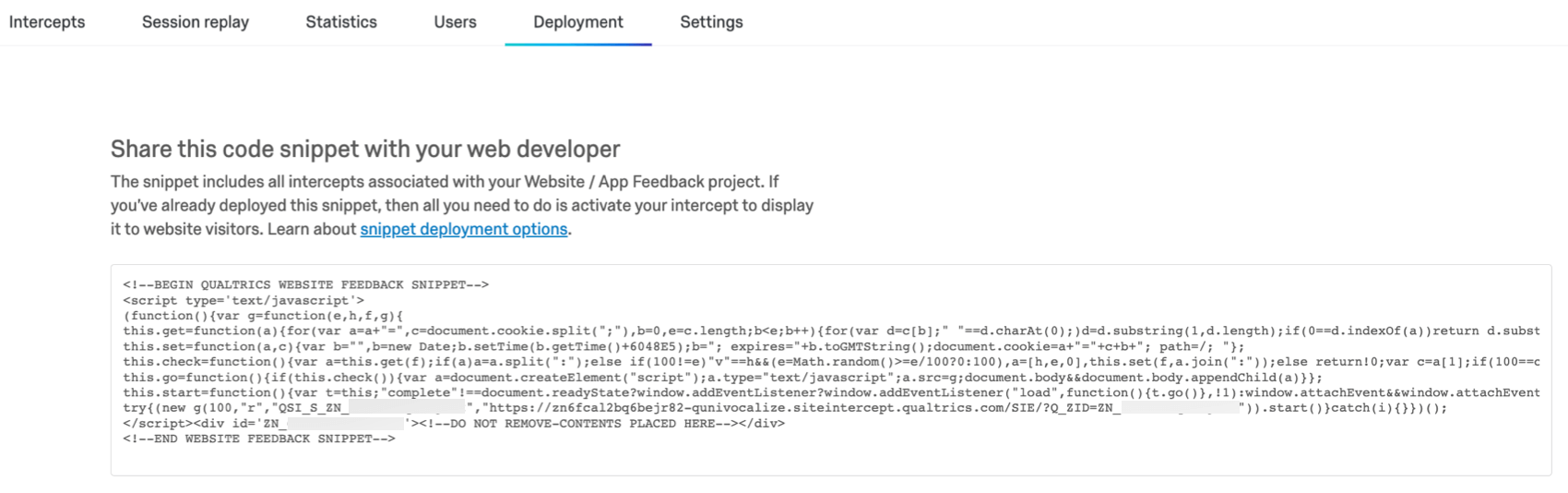
To get the code snippet, you need to upgrade your account, as it is not supported in a free account. This snippet will be used for both script-based and plugin-based integration. To get the code snippet, visit settings and then click on deployment, as shown below:
Now, you can code this snippet and use the same in UI5:
Steps To Integrate Qualtrics In SAP UI5 using JavaScript Snippet
Step 1: Create a Qualtrics survey and obtain the snippet code.
Step 2: In the UI5 application, add the snippet in controller init (or any other function that you can trigger as per your requirement.
Step 3: Save and run the UI5 application to see the Qualtrics survey integrated as a sidebar.
Note: Remember to configure the Qualtrics survey so that it is accessible from the UI5 application. Additionally, be aware of the security considerations when using snippets in your application.
Source Code
Qualtrics.view.xml
<mvc:View controllerName="Qualtrics.Qualtrics.controller.Qualtrics" xmlns:mvc="sap.ui.core.mvc" displayBlock="true" xmlns="sap.m"

xmlns:html="http://www.w3.org/1999/xhtml">

<Shell id="shell">

<App id="app">

<pages>

<Page id="page" title="Qualtrics Integration in SAP UI5 using JS Code">

<content>

</content>

</Page>

</pages>

</App>

</Shell>

</mvc:View>
Qualtrics.controller.js
sap.ui.define([

"sap/ui/core/mvc/Controller"

], function (Controller) {

"use strict";

return Controller.extend("Qualtrics.Qualtrics.controller.Qualtrics", {

onInit: function () {

var snippet =

'var g=function(e,h,f,g){this.get=function(a){for(var a=a+"=",c=document.cookie.split(";"),b=0,e=c.length;b<e;b++){for(var d=c[b];" "==d.charAt(0);)d=d.substring(1,d.length);if(0==d.indexOf(a))return d.substring(a.length,d.length)}return null};this.set=function(a,c){var b="",b=new Date;b.setTime(b.getTime()+6048E5);b="; expires="+b.toGMTString();document.cookie=a+"="+c+b+"; path=/; "};this.check=function(){var a=this.get(f);if(a)a=a.split(":");else if(100!=e)"v"==h&&(e=Math.random()>=e/100?0:100),a=[h,e,0],this.set(f,a.join(":"));else return!0;var c=a[1];if(100==c)return!0;switch(a[0]){case "v":return!1;case "r":return c=a[2]%Math.floor(100/c),a[2]++,this.set(f,a.join(":")),!c}return!0};this.go=function(){if(this.check()){var a=document.createElement("script");a.type="text/javascript";a.src=g;document.body&&document.body.appendChild(a)}};this.start=function(){var t=this;"complete"!==document.readyState?window.addEventListener?window.addEventListener("load",function(){t.go()},!1):window.attachEvent&&window.attachEvent("onload",function(){t.go()}):t.go()};};try{(new g(100,"r","QSI_S_ZN_eDoIXhSDN98YlPo","https://zn6so4br3spbt61a5-sapdemo.siteintercept.qualtrics.com/SIE/?Q_ZID=ZN_6sO4Br3Spbt61a5")).start()}catch(i){}';

var functionCall = new Function(snippet);

return (functionCall());

}

});

});
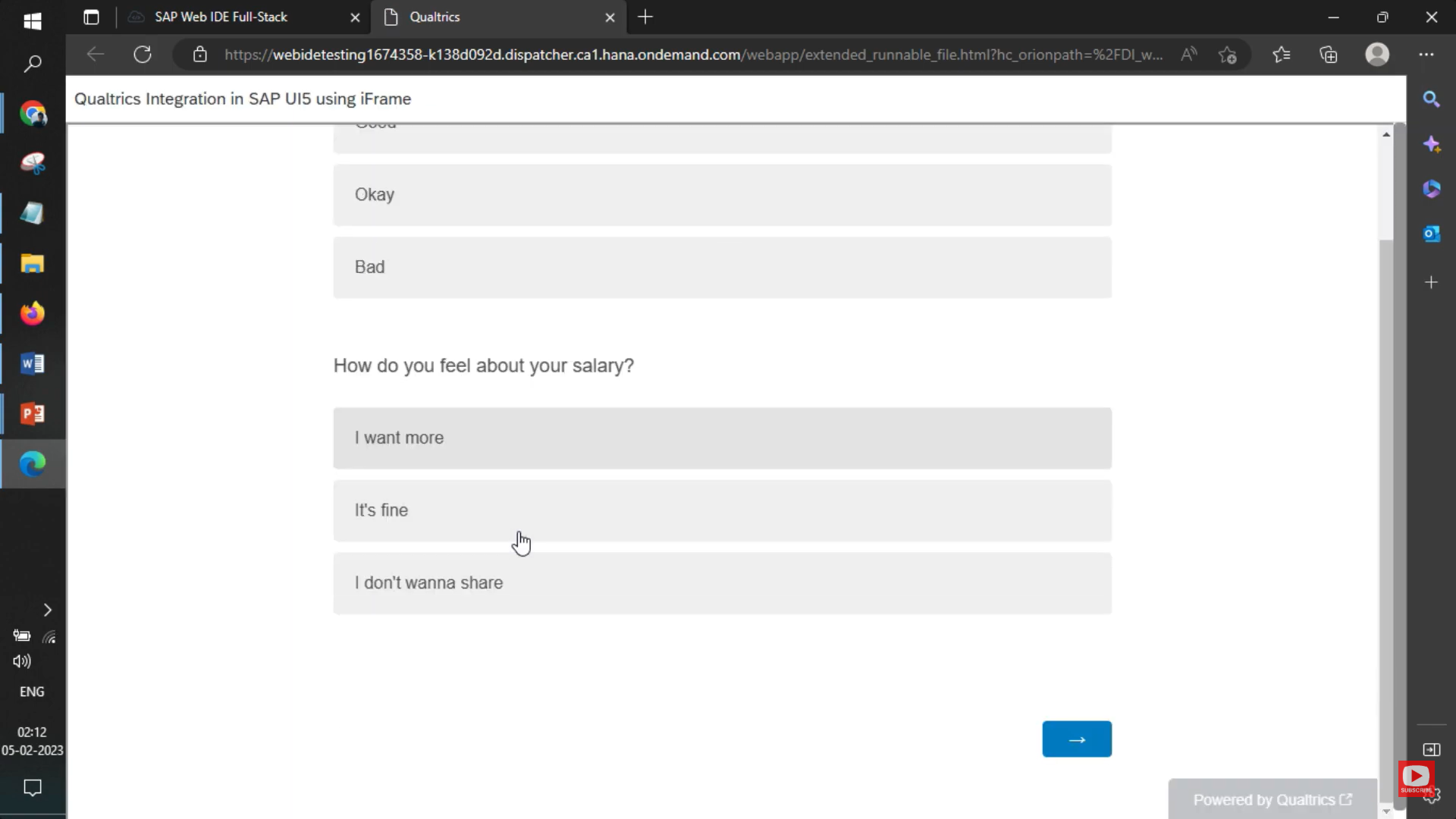
Output of UI5
Survey Results at Qualtrics
We have successfully completed this project to Integrate Qualtrics Surveys In SAP UI5 Using JavaScript. If you have any queries or doubts. You can comment below, and we will guide you.
In today’s digital world, creating intuitive and responsive web applications is crucial for businesses. SAP UI5 is a powerful framework that helps developers build such applications with ease. It offers a rich set of tools and libraries to create seamless user interfaces.
On the other hand, OpenAI’s GPT-4-turbo is an advanced language model that excels in understanding and generating human-like text. Its new features bring a lot of exciting possibilities, especially when integrated with web applications like those built with SAP UI5.
This article explores how combining GPT-4-turbo with SAP UI5 can enhance your applications. From natural language queries and data summarization to predictive analysis and anomaly detection, we’ll cover practical ways to leverage these technologies to create smarter, more interactive applications.
Integrating GPT-4-turbo with SAP UI5
Why Integrate GPT-4-turbo?
Integrating GPT-4-turbo with your SAP UI5 applications can bring a host of benefits, making your apps smarter and more user-friendly. Here are a few reasons why you should consider this integration:
1. Enhanced User Interaction: GPT-4-turbo allows users to interact with your application using natural language. This means users can perform complex searches and queries just by typing or speaking in plain English, making your app more accessible and easier to use.
2. Powerful Data Analysis: With GPT-4-turbo, you can analyze and interpret large datasets quickly and accurately. This helps in generating summaries, identifying trends, and gaining insights that would be difficult to obtain manually.
3. Predictive Capabilities: Leverage the model’s ability to predict future trends based on historical data. This can be invaluable for planning, forecasting, and decision-making processes.
4. Anomaly Detection: Automatically detect outliers and anomalies in your data, helping you spot potential issues early and take corrective actions.
5. Automation and Efficiency: Automate routine tasks such as data cleaning, categorization, and report generation. This not only saves time but also reduces the risk of human error.
By integrating GPT-4-turbo, you can transform your SAP UI5 applications into intelligent, responsive tools that deliver a better experience for your users and provide deeper insights for your business.
Setting Up the Integration
Integrating GPT-4-turbo with your SAP UI5 application involves a few key steps. Here’s a simple guide to get you started:
Obtain API Key from OpenAI: In a previous post, we have already shared how you can set up the OpenAI Key. You can read it here: How to generate an API key for ChatGPT?
Implement the Service in Your Controller: Based upon different scenarios, implement OpenAI calls in your SAP UI5 project
Leveraging GPT-4-turbo Features in SAP UI5:
Practical Implementation Examples
Natural Language Queries: Queries that would not be filter-based but based upon your inputs. For example, you can ask the filter bar to do certain complex filtering without even choosing anything from the filter.
Data Summarization and Insights: There might be a lot of data for a particular table, and a summary for a particular row item can be easily gathered using AI.
Predictive Analysis: SAP has a different portal for analysis, reporting, and predictive AI. However, with AI integration, it can be achieved from the same report without further coding.
Anomaly Detection: If the data pattern and the standard are known, then AI can easily detect anomalies in data.
Example 1: Filtering Table Data Using Natural Language
Below is the complete code for implementing a search bar that accepts natural language queries to filter sales data in a table.
// Controller.js
sap.ui.define([
  "sap/ui/core/mvc/Controller",
  "rudelabs/rudelabs/js/OpenAIService",
  "sap/ui/model/json/JSONModel"
], function (Controller, OpenAIService, JSONModel) {
  "use strict";

  return Controller.extend("rudelabs.rudelabs.controller.GenerativeAI", {
      onInit: function () {
          // Load initial sales data into the model
          var oSalesData = {
              sales: this._generateSalesData(10)
          };
          var oModel = new JSONModel(oSalesData);
          this.getView().setModel(oModel);
      },

      _generateSalesData: function (n) {
          var aSalesData = [];
          for (var i = 0; i < n; i++) {
              aSalesData.push({
                  OrderID: "ORD" + (i + 1),
                  Customer: "Customer " + (i + 1),
                  Date: new Date(2023, Math.floor(Math.random() * 12), Math.floor(Math.random() * 28) + 1).toLocaleDateString(),
                  Amount: Math.floor(Math.random() * 2000) + 100
              });
          }
          return aSalesData;
      },

      onUserQuery: function () {
          var oTable = this.getView().byId("salesTable");
          var aData = oTable.getModel().getData().sales;

          var sUserQuery = this.getView().byId("userQueryInput").getValue();
          var sPrompt = `Filter the following sales data based on the user query: "${sUserQuery}". Data: ${JSON.stringify(aData)}. Please provide the filtered data in valid JSON format without any additional text or comments.`;

          OpenAIService.callOpenAI(sPrompt).then(function (response) {
              var aFilteredData = JSON.parse(response.choices[0].message.content.trim());
              oTable.getModel().setData({ sales: aFilteredData });
          }).catch(function (error) {
              console.error("Error calling OpenAI API:", error);
          });
      }
  });
});
// Controller.js
sap.ui.define([
  "sap/ui/core/mvc/Controller",
  "rudelabs/rudelabs/js/OpenAIService",
  "sap/ui/model/json/JSONModel"
], function (Controller, OpenAIService, JSONModel) {
  "use strict";

  return Controller.extend("rudelabs.rudelabs.controller.GenerativeAI", {
      onInit: function () {
          // Load initial sales data into the model
          var oSalesData = {
              sales: this._generateSalesData(10)
          };
          var oModel = new JSONModel(oSalesData);
          this.getView().setModel(oModel);
      },

      _generateSalesData: function (n) {
          var aSalesData = [];
              aSalesData.push( {
                "id": 1,
                "product": "2024 Toyota Camry",
                "date": "2024-05-15",
                "amount": 125
              },
              {
                "id": 2,
                "product": "2023 Ford F-150",
                "date": "2024-05-14",
                "amount": 87
              },
              {
                "id": 3,
                "product": "2022 Tesla Model 3",
                "date": "2024-05-13",
                "amount": 52
              },
              {
                "id": 4,
                "product": "2024 Honda Accord",
                "date": "2024-05-12",
                "amount": 98
              },
              {
                "id": 5,
                "product": "2023 Chevrolet Silverado",
                "date": "2024-05-11",
                "amount": 73
              },
              {
                "id": 6,
                "product": "2022 Hyundai Tucson",
                "date": "2024-05-10",
                "amount": 41
              },
              {
                "id": 7,
                "product": "2024 Kia Telluride",
                "date": "2024-05-09",
                "amount": 67
              },
              {
                "id": 8,
                "product": "2023 Volkswagen Tiguan",
                "date": "2024-05-08",
                "amount": 39
              },
              {
                "id": 9,
                "product": "2022 Nissan Altima",
                "date": "2024-05-07",
                "amount": 82
              },
              {
                "id": 10,
                "product": "2024 Jeep Wrangler",
                "date": "2024-05-06",
                "amount": 58
              });
          return aSalesData;
      },

      onGenerateSummary: function () {
          var sTextArea = this.getView().byId("summaryTextArea");
          var oTable = this.getView().byId("salesTable");
          var aData = oTable.getModel().getData().sales;
          var sPrompt = `Generate Sales Data Summary for the following data in 100 words: ${JSON.stringify(aData)}. The response should be in a paragraph discussing the sales of car as per data.`;
          OpenAIService.callOpenAI(sPrompt).then(function (response) {
              sTextArea.setValue(response.choices[0].message.content);
          }).catch(function (error) {
              console.error("Error calling OpenAI API:", error);
          });
      }
  });
});
OpenAI Service Code (OpenAIService.js)
No changes, same as mentioned in the previous example.
Output
Example 3: Predictive Analysis
Example 4: Anomaly Detection
Advanced Use Cases
Interactive Dashboards: Discuss creating dynamic and interactive dashboards that leverage GPT-4-turbo for real-time data analysis and visualization.
Automated Reports and Alerts: Explain how to generate automated reports and set up custom alerts based on specific data conditions.
User Feedback Integration: Demonstrate how to implement a feedback loop where users can provide feedback and receive intelligent suggestions from the system.
With the constant evolution of the web and the various platforms that power it, ensuring a seamless user experience is crucial. In SAP UI5, a key component that aids in enhancing this experience is the use of cookies. Through this article, we’ll delve into the realm of cookies in SAP UI5, why they’re essential, and how to set them up for optimal use.
What is a Cookie and why is it required in SAP UI5?
A cookie is a small piece of data sent from a website and stored in a user’s web browser. They remember stateful information for the stateless HTTP protocol. In SAP UI5, cookies play an essential role in retaining user preferences, maintaining sessions, or even tracking user interactions, ensuring users don’t have to re-enter preferences every time they revisit an application.
Client-side Cookies vs. server-side Cookies
In the realm of web development, cookies can generally be categorized into two types:
Client-side Cookies: These are stored on the user’s browser and can be read using JavaScript when the user revisits the site. They are primarily used for local preferences, theme settings, or even short-term tracking.
Server-side Cookies: These are processed on the web server and can be read on subsequent HTTP requests made to the server for the same domain. They are mainly utilized for sessions, user authentication, and more persistent tracking.
In SAP UI5, depending on your requirements, you might lean towards one type of cookie over the other, or even use a combination of both.
Set cookie and get a cookie with JavaScript in SAP UI5
Using JavaScript in SAP UI5 to set and retrieve cookies is straightforward.
Setting a Cookie:
function setCookie(name, value, days) {
    let expires = "";
    if (days) {
        const date = new Date();
        date.setTime(date.getTime() + (days*24*60*60*1000));
        expires = "; expires=" + date.toUTCString();
    }
    document.cookie = name + "=" + (value || "") + expires + "; path=/";
}
Usage:
setCookie("userPreference", "darkTheme", 7);
Getting a Cookie:
function getCookie(name) {
    const nameEQ = name + "=";
    const cookiesArray = document.cookie.split(';');
    for(let i=0; i < cookiesArray.length; i++) {
        let cookie = cookiesArray[i];
        while (cookie.charAt(0) == ' ') cookie = cookie.substring(1, cookie.length);
        if (cookie.indexOf(nameEQ) == 0) return cookie.substring(nameEQ.length, cookie.length);
    }
    return null;
}
When making AJAX calls in SAP UI5, you might need to send cookies along with your request. Here’s a simple way to do it:
Using the jQuery ajax method:
$.ajax({
    url: "https://yourapiendpoint.com/data",
    type: "GET",
    xhrFields: {
        withCredentials: true
    },
    success: function(data) {
        // Handle data here
    }
});
The withCredentials: true ensures that cookies are sent with the request. Remember that the server also needs to accept credentials from the origin by setting the appropriate CORS headers.
Installing Visual Studio Code (VS Code) for SAP UI5/Fiori development involves setting up VS Code with the appropriate extensions and tools to facilitate SAP UI5/Fiori application development. Follow these steps to get started:
Step 1: Install Visual Studio Code
1. Download Visual Studio Code from the [official website](https://code.visualstudio.com/).
2. Run the installer for your operating system (Windows, macOS, or Linux), and follow the installation instructions.
Step 2: Install Node.js and npm
SAP UI5/Fiori development often requires Node.js for running local servers, building projects, and managing dependencies.
1. Download the latest LTS version of Node.js from the [official website](https://nodejs.org/).
2. Run the installer and follow the prompts to install Node.js and npm (Node Package Manager), which comes bundled with Node.js.
Step 3: Install the UI5 CLI
The UI5 CLI is a command-line interface that simplifies the development and extension of SAP UI5 projects.
1. Open a terminal or command prompt.
2. Install the UI5 CLI globally using npm by running:
npm install --global @ui5/cli
Step 4: Install Visual Studio Code Extensions
Several VS Code extensions can enhance SAP UI5/Fiori development by providing features like syntax highlighting, code completion, and more. Consider installing the following extensions: 1. SAP Fiori Tools – Extension Pack: This extension pack includes tools for SAP Fiori development, like the Application Generator, Service Modeler, and more. You can find it by searching for “SAP Fiori Tools” in the Extensions view (`Ctrl+Shift+X`) in VS Code. 2. XML Tools: Useful for working with XML views in SAP UI5. 3. ESLint: Helps identify and fix JavaScript code issues. 4. Prettier – Code Formatter: Automatically formats JavaScript, XML, and other files.
5. To install an extension, type its name into the Extensions view search box in VS Code, select the correct extension from the list, and click the “Install” button.
Step 5: Configure a Project
To start developing an SAP UI5/Fiori application, you might want to create a new project or clone an existing one from a Git repository.
1. To create a new project, you can use the SAP Fiori tools or the UI5 CLI to generate a template project.
2. For SAP Fiori tools, follow the guided development process initiated from the Command Palette (`Ctrl+Shift+P`) by typing “Fiori: Open Application Generator” and following the prompts.
3. For the UI5 CLI, create a new directory for your project, navigate into it using the terminal, and run:
ui5 init
Then generate a new controller/view pair, or copy your existing project files into this directory.
Step 6: Start Development
1. Open your project in VS Code by selecting “File > Open Folder…” and navigating to your project directory.
2. Use the terminal in VS Code (`Ctrl+` `) to run UI5-related commands, such as:
ui5 serve
to start a local development server.
Step 7: Test Your Application
Access your application by opening the URL provided by the `ui5 serve` command in a web browser.
By following these steps, you’ll have a development environment set up in Visual Studio Code for SAP UI5/Fiori development. Remember to explore and adjust settings and configurations as you become more familiar with the tools and your project’s specific needs.
SAP ABAP Unit Test is a feature in the SAP Advanced Business Application Programming (ABAP) environment that allows developers to create and run unit tests for their code. This promotes better code quality, readability, and maintainability. Let’s delve deep into the concept:
Introduction
ABAP Unit is SAP’s native framework for creating and executing unit tests in the ABAP development environment.
Unit tests are designed to test individual parts (units) of the software, typically at the method or function level.
It allows developers to test individual units of code, such as methods, function modules, and subroutines. This can help to identify and fix bugs early in the development process, and improve the overall quality of the code.
Purpose of ABAP Unit Test
Quality Assurance: Ensures that individual units of source code are working as expected.
Refactoring Security: Allows developers to make changes to the codebase without fear of unintentionally introducing errors.
Documentation: Unit tests can serve as documentation because they demonstrate how certain functionality is expected to work.
How It Works
ABAP Unit tests are written in the ABAP language itself.
The tests are generally located in the same development object or class they’re testing, but they are clearly separated from the actual implementation.
The tests can be executed in the ABAP development environment. The system provides instant feedback on whether the tests pass or fail.
Key Concepts
Test Classes: These are special classes in ABAP where unit tests are defined. They typically end with the suffix _UT.
Test Methods: These are methods inside test classes that contain the actual test logic. They are marked with the addition FOR TESTING.
Test Fixtures: Methods that set up a consistent test environment before each test run. They are often used to initialize data or configurations needed for the tests.
Assertions: Used to check if a particular condition is met. If an assertion fails, the test fails.
Benefits
Immediate Feedback: Developers receive immediate feedback after making changes, allowing for quicker debugging.
Consistency: Helps in maintaining consistency across the development environment as all developers can run the same tests.
Reduces Bugs: By catching issues early in the development process, it can significantly reduce the number of bugs in the production environment.
Facilitates Collaboration: Makes it easier for teams to collaborate as they can rely on tests to ensure the integrity of their code.
Best Practices
Isolation: Unit tests should be isolated and independent. The result of a test should not be dependent on whether other tests pass or fail.
Granularity: Test only one aspect or behavior at a time.
Automate: Ideally, run unit tests as part of an automated build or integration process.
Consistency: Ensure that unit tests are consistently maintained and updated as the codebase evolves.
Limitations
Unit tests in ABAP or any language are not a substitute for other testing levels like integration tests or end-to-end tests.
They don’t typically interact with external systems like databases or third-party services, so while they can ensure a function works as expected in isolation, they can’t guarantee broader system functionality.
Creation in ABAP
Local Test Classes: Within the ABAP environment, developers can create local classes (within programs or global classes) to write unit tests. These are typically nested within the main program or global class.
CLASS lcl_test DEFINITION FOR TESTING INHERITING FROM cl_b2p_call.

  PRIVATE SECTION.
    DATA: lt_key       TYPE TABLE OF /bobf/t_frw_key,
          lt_messages  TYPE TABLE OF symsg_tab,
          lv_error_msg TYPE string.

  METHODS:
    setup,
    teardown,
    test_send_outbproxy_success,
    test_send_outbproxy_error.

ENDCLASS.

CLASS lcl_test IMPLEMENTATION.

  METHOD setup.
    CLEAR lt_key.
    CLEAR lt_messages.
  ENDMETHOD.

  METHOD teardown.
    " Clean up if necessary
  ENDMETHOD.

  METHOD test_send_outbproxy_success.
    DATA: lt_key TYPE TABLE OF /bobf/t_frw_key,
          ls_key TYPE /bobf/t_frw_key.

    " Prepare input data
    ls_key-key = 'B7036E6334A61EEE96EC134C77E96235'.
    APPEND ls_key TO lt_key.

    " Call the method being tested
    CALL METHOD send_outbproxy
      EXPORTING
        it_key      = lt_key
      IMPORTING
        et_messages = lt_messages
        ev_error    = lv_error_msg.

    " Assertions
    cl_abap_unit_assert=>assert_equals( act = lv_error_msg
                                        exp = ''
                                        msg = 'Expected no error message for success.' ).

    cl_abap_unit_assert=>assert_equals( act = lines( lt_messages )
                                        exp = 1
                                        msg = 'Expected one message in the message table for success.' ).

    " Add more assertions based on your specific success criteria.

  ENDMETHOD.

  METHOD test_send_outbproxy_error.
    DATA: lt_key TYPE TABLE OF /bobf/t_frw_key,
          ls_key TYPE /bobf/t_frw_key.

    " Prepare input data
    ls_key-key = 'InvalidKey'.  " Simulate an invalid key
    APPEND ls_key TO lt_key.

    " Call the method being tested
    CALL METHOD send_outbproxy
      EXPORTING
        it_key      = lt_key
      IMPORTING
        et_messages = lt_messages
        ev_error    = lv_error_msg.

    " Assertions
    cl_abap_unit_assert=>assert_not_equals( act = lv_error_msg
                                            exp = ''
                                            msg = 'Expected an error message for invalid input.' ).

    cl_abap_unit_assert=>assert_equals( act = lines( lt_messages )
                                        exp = 1
                                        msg = 'Expected one message in the message table for error.' ).

    " Add more assertions based on your specific error criteria.

  ENDMETHOD.

ENDCLASS.
In this example:
The setup and teardown methods are used for initialization and cleanup.
test_send_outbproxy_success and test_send_outbproxy_error are test methods.
In each test method, you prepare the input data (lt_key), call the method being tested (send_outbproxy), and then perform assertions to check if the method behaves as expected for success and error cases.
You can adjust the assertions and test data based on your specific requirements and the behavior of the SEND_OUTBPROXY method.
Methods: Within these classes, specific methods are marked with the addition FOR TESTING to indicate they are test methods.
Assertions: Inside the test methods, you use ABAP statements like ASSERT or ASSERT_EQUALS to validate the expected outcomes.
Test in ADT and ABAP SE24
ADT (ABAP Development Tools): This is essentially the Eclipse-based IDE for ABAP. Developers can write and execute unit tests directly from here.
SE24: This is the Class Builder in the SAP GUI. You can create global classes, which include your test classes and test methods, and execute them directly from this transaction.
Checkman T Code in SAP
CHECKMAN is the T-code for the Code Inspector, a tool for static code analysis in the SAP environment.
It helps in identifying performance issues, security vulnerabilities, and violations of coding conventions.
While it’s not directly a unit testing tool, it’s vital for ensuring code quality and adherence to best practices.
Execute Unit Test in ABAP
After writing the unit tests, they can be executed directly from the ABAP environment.
When you run the unit tests, ABAP provides a detailed log of which tests passed and which failed.
For any failed test, you get an error message pointing out the assertion or the line of code causing the failure.
ABAP Coverage
Test coverage in ABAP measures the amount of your codebase that’s tested by unit tests.
The ABAP Test Cockpit and ABAP Development Tools in Eclipse provide insights into which lines of code, methods, or classes have been executed during the tests.
This is crucial because high test coverage often correlates with fewer bugs, though it’s not a guarantee of software quality by itself.
ATC Errors during ABAP Unit Test
ATC (ABAP Test Cockpit): It’s a central tool for developers to check the quality of their ABAP code.
While executing unit tests, you might come across ATC errors. These could be due to a range of issues, from syntax errors to violations of best practices or custom checks defined in your SAP environment.
Addressing ATC errors ensures your code is not only functionally correct but also adheres to established coding standards.
Conclusion
The ABAP Unit Test framework is a powerful tool in the SAP development toolkit. When used effectively, it can greatly enhance code quality, reduce debugging time, and ensure smoother deployments. Like all testing methodologies, it’s most effective when used in conjunction with other testing and quality assurance practices.