Preface – This post is part of the ABAP Programs series.
Lock Objects in SAP ABAP are global reusable component which generates function modules i.e. ENQUEUE_E_TABLE and DEQUEUE_E_TABLE that are used to set and release locks on data record. This Enqueue and Dequeue method is used to lock and unlock any object in SAP ABAP. In this article, we will learn these methods with the help of a program. Before starting this, you must read the basic concepts of Lock Objects in SAP ABAP.
Introduction
It is very important to lock an object that is under development. By object we mean everything i.e. Tables, Views, Reports, Methods, Function Modules, and all. ABAP too provides these features by default for their standard interfaces. But what if you need to create one for your own table. Then you need to use the given two Function Modules:
ENQUEUE_E_TABLE: To Add Lock
DEQUEUE_E_TABLE: To Remove Lock
Enqueue and Dequeue in ABAP- Image Illustration
ABAP Program to perform Enqueue and Dequeue Operations
DATA: varkey LIKE rstable-varkey.
varkey = sy-mandt.
CALL FUNCTION 'ENQUEUE_E_TABLE' "Add Lock
  EXPORTING
*   MODE_RSTABLE   = 'E'
    tabname        = 'ZBarry_TEST'
    varkey         = varkey
*   X_TABNAME      = ' '
*   X_VARKEY       = ' '
*   _SCOPE         = '2'
*   _WAIT          = ' '
*   _COLLECT       = ' '
  EXCEPTIONS
    foreign_lock   = 1
    system_failure = 2
    OTHERS         = 3.
CASE sy-subrc.
  WHEN 1.
    MESSAGE i184(bctrain) WITH 'Foreign lock'.
  WHEN 2.
    MESSAGE i184(bctrain) WITH 'system failure'.
  WHEN 0.
    MESSAGE i184(bctrain) WITH 'success'.
  WHEN OTHERS.
    MESSAGE i184(bctrain) WITH 'others'.
ENDCASE.
CALL FUNCTION 'DEQUEUE_E_TABLE' "Remove Lock
  EXPORTING
*   MODE_RSTABLE       = 'E'
    tabname = 'ZBarry_TEST'
    varkey  = varkey
*   X_TABNAME          = ' '
*   X_VARKEY           = ' '
*   _SCOPE  = '3'
*   _SYNCHRON          = ' '
*   _COLLECT           = ' '
  .

IF sy-subrc <> 0.
* Implement suitable error handling here
ENDIF.
Code Explanation
The above program is self explanatory, still we will explain key points below:
Initially, we have defined a variable varkey which will give the client information. It tells, ABAP, for which client, you want to block/unblock the table. It is taken automatically using sy-mandt.
Then we have called Function ‘ENQUEUE_E_TABLE’, it returns either either success, failure or Foreign lock exception.
Later, when we are done with our changes regarding our table, we need to unlock the same. For that we call Function ‘DEQUEUE_E_TABLE’.
Preface – This post is part of the ABAP Programs series.
Interactive Report in SAP ABAP is a report where you can interact with the output page of report. You can click on an item of a list to get its details. In this article, we will discuss an example of Interactive Reports. To know more about Events in Interactive Report click here. Do check Interactive Reporting – FAQs for more clarification.
Introduction
ABAP report has more often a requirement to display expandable lists.
For example, On first page you have been provided basic details of employees.
Report – Page 1 Illustration
On click of a line item i.e. Employee ID (Here, we have clicked, 1117582), you are navigated to another page where you can see the employee Annual Salary.
Report – Page 2 Image Illustration
If you still want to know further, you again clicked on Employee ID(Here, we have clicked, 1117582) here and now you are navigated to third page where you see employee’s salary structure.
Report Page 3 – Image Illustration
These all things are possible in SAP ABAP using Interactive Reports.
ABAP Interactive Report Program
Program Requirement: Create an ABAP report to take Employee ID as Input and display basic details i.e. Employee ID, First Name and Last Name on First page (list 0). On click of Employee ID, display employee salary details on list 1. Again on click of Employee ID, display address details on list 2.
TABLES zBarry_emp.
TABLES zBarry_sal.

DATA : it_emp1 TYPE TABLE OF zBarry_emp,
       it_emp2 TYPE TABLE OF zBarry_sal,
       wa_emp  TYPE zBarry_emp,
       wa_emp2 TYPE zBarry_sal,
       it_emp3 TYPE TABLE OF zBarry_add,
       wa_emp3 TYPE zBarry_add,
       fnam    TYPE char20,
       fval    TYPE INT4,
       fnam1   TYPE char20,
       fval1   TYPE INT4.
set PF-STATUS 'PFSTATUS'.
SELECT-OPTIONS : p_empid FOR zBarry_emp-empid.
AT USER-COMMAND.

CASE SY-UCOMM.

    WHEN 'MAIN'.

     sy-lsind = 1.
     PERFORM display_data.
  ENDCASE.

AT SELECTION-SCREEN.
  PERFORM validate_input.

START-OF-SELECTION.
  PERFORM get_data.
  PERFORM display_data.

TOP-OF-PAGE.
  FORMAT COLOR COL_HEADING INVERSE.
  WRITE 'BASIC EMPLOYEE DETAILS'.

TOP-OF-PAGE DURING LINE-SELECTION.
  IF sy-lsind = 1.
    FORMAT COLOR COL_HEADING INVERSE.
    WRITE 'EMPLOYEE SALARY DETAILS'.
  ELSEIF sy-lsind = 2.

    FORMAT COLOR COL_HEADING INVERSE.
    WRITE 'EMPLOYEE ADDRESS DETAILS'.
  ENDIF.

AT LINE-SELECTION.
  PERFORM primary_list.
  PERFORM secondary_list.


*&---------------------------------------------------------------------*
*&      Form  VALIDATE_INPUT
*&---------------------------------------------------------------------*
*       text
*----------------------------------------------------------------------*
*  -->  p1        text
*  <--  p2        text
*----------------------------------------------------------------------*
FORM validate_input . "validating input
  IF p_empid  IS INITIAL.
    MESSAGE 'Please Enter Employee Number' TYPE 'E'. "if the employee id field is left blank

  ELSE.
    SELECT empid FROM zBarry_emp INTO TABLE it_emp1 WHERE empid IN p_empid.
    IF sy-subrc <> 0.
      MESSAGE 'Please Enter Correct Employee Number' TYPE 'E'. "if wrong employee id is entered
    ENDIF.
  ENDIF.
ENDFORM.
*&---------------------------------------------------------------------*
*&      Form  GET_DATA
*&---------------------------------------------------------------------*
*       text
*----------------------------------------------------------------------*
*  -->  p1        text
*  <--  p2        text
*----------------------------------------------------------------------*
FORM get_data . "fetching basic employee details from table
  SELECT * FROM zBarry_emp INTO TABLE it_emp1 WHERE empid IN p_empid.
ENDFORM.
*&---------------------------------------------------------------------*
*&      Form  DISPLAY_DATA
*&---------------------------------------------------------------------*
*       text
*----------------------------------------------------------------------*
*  -->  p1        text
*  <--  p2        text
*----------------------------------------------------------------------*
FORM display_data . "displaying data
  FORMAT COLOR COL_NEGATIVE INVERSE.
  WRITE:/,3 'Employee ID',
      20 'First NAME',
      35 'Last NAME'.
  SKIP.
  LOOP AT it_emp1 INTO wa_emp.
    FORMAT COLOR COL_POSITIVE INVERSE.
    WRITE : /3 wa_emp-empid,20 wa_emp-emp_fname,35 wa_emp-emp_lname.
  ENDLOOP.
ENDFORM.
*&---------------------------------------------------------------------*
*&      Form  PRIMARY_LIST
*&---------------------------------------------------------------------*
*       text
*----------------------------------------------------------------------*
*  -->  p1        text
*  <--  p2        text
*----------------------------------------------------------------------*
FORM primary_list . "fetching employee salary details on list 1
  IF sy-lsind = 1.
    GET CURSOR FIELD fnam VALUE fval.

    IF fnam =  'WA_EMP-EMPID'. "if employee id is selected
      SELECT * FROM zBarry_sal INTO TABLE it_emp2 WHERE empid = fval .
      FORMAT COLOR COL_NEGATIVE INVERSE.
      WRITE:/,3 'Employee ID',
               20 'Transaction ID',
               35 'Month',
               55 'Date Of Salary'.
      SKIP.
      LOOP AT it_emp2 INTO wa_emp2.
        FORMAT COLOR COL_POSITIVE INVERSE.

        WRITE : /3 wa_emp2-empid,20 wa_emp2-tid,35 wa_emp2-mon,55 wa_emp2-dos.

      ENDLOOP.

    ENDIF.

    IF  fnam = 'WA_EMP-EMP_FNAME'. "if employee name is selected

      WRITE: / 'name'.
    ENDIF.
  ENDIF.
ENDFORM.
*&---------------------------------------------------------------------*
*&      Form  SECONDARY_LIST
*&---------------------------------------------------------------------*
*       text
*----------------------------------------------------------------------*
*  -->  p1        text
*  <--  p2        text
*----------------------------------------------------------------------*
FORM secondary_list . "fetching employee address details on list 2
  IF sy-lsind = 2.
    GET CURSOR FIELD fnam1 VALUE fval1.
    IF fnam =  'WA_EMP-EMPID'. "if employee id is selected
      SELECT * FROM zBarry_add INTO TABLE it_emp3 WHERE empid = fval1 .
      FORMAT COLOR COL_NEGATIVE INVERSE.
      WRITE:/,3 'Employee ID',
               20 'Flat No.',
               35 'Street Name',
               55 'City Name'.
      SKIP.
      LOOP AT it_emp3 INTO wa_emp3.
        FORMAT COLOR COL_POSITIVE INVERSE.
        WRITE : /3 wa_emp3-empid,20 wa_emp3-flat_no,35 wa_emp3-street_name,55 wa_emp3-city_name.
      ENDLOOP.

    ENDIF.

  ENDIF.
ENDFORM.
Important Points to Consider
The fields fval and fval1 will hold the value of field that you will double click. In our usecase, we store Employee ID in it and use the same to fetch data from table, hence its field type is similar to the Emp ID, i.e. INT4 .
Also, You need to double click on set PF-STATUS ‘PFSTATUS’.
And enter the following as shown below:
If F2 value is not set as ‘PICK’ as shown above then it will cause issue and you will wonder why double click is not working for ABAP Interactive report.
Code Explanation
In the program mentioned above, we have discussed Interactive operation in ABAP Report. This program has comments wherever required. Still, we will be explaining the key points of this program. This program utilizes ABAP Interactive Events, do read it here, before proceeding.
Initially, we have defined Parameters to take Employee ID as input, variables to perform query and have set PF-STATUS as ‘PFSTATUS’. This PF Status is used to display standard Menu buttons on the top i.e. Execute, Close, Back, etc
Forms/Performs : Here we have written following forms as per the requirement:
validate_input: Here we check if the employee id field is left blank or if wrong employee id is entered. In both cases we raise error
get_data: Here we are fetching basic employee details from table
display_data: Here we are displaying data (list 0)
primary_list: Here we are fetching employee salary details on list 1
secondary_list: Here we are fetching employee address details on list 2
Output
Screen 1:
Screen 2:
Screen 3:
Tutorial Video
You can watch the below video to learn implementation:
Preface – This post is part of the ABAP Programs series.
In ABAP, if you know basic SQL operation to perform CRUD Operations in ABAP report, then this article will teach you multiple ways to perform the same.
Introduction
ABAP report has more often a requirement to perform any of the following operation:
Create : It means, you add data into a table
Read : It means, you read data from a table
Update : It means, you update any data of a table
Delete : It means, you delete a record from a table
Everything in programming are directly or indirectly performing CRUD operations only. Let’s take example of Facebook.
Whenever anyone create a profile on Facebook, the data of new Facebook ID is added into a table.
Create Operation in Facebook
If you want to see your profile, data is read from the same table.
Read Operation in Facebook
If you want to update your profile, data is updated in the same table.
Update Operation in Facebook
And if, you plan to delete your account permanently, data is deleted from the same table.
Delete Operation in Facebook
You see, here we have performed CRUD operations only.
ABAP Program to perform CRUD Operations
Program Requirement: Create an ABAP report to provide four radio buttons with name Create, Update, Read and Delete. Employee ID input box will be always visible. If Create button is clicked, Input boxes will be available for Employee Details Input. On Save, it will save data in table. If Update button is clicked, Input boxes will be visible with pre-loaded data for the Employee ID. On Update, it will update data in the table. If Read is clicked, the data for the Employee ID will be visible. If delete radio button is clicked, on click of Delete button, data will be deleted.
Some Tables you will need:
Employee Basic Table
Employee Salary Table
Employee Address Table
"Program for Reading , Updating , Inserting & Deleting data from a table


TABLES: zBarry_emp. "Employee Table
DATA: lt_itab   TYPE TABLE OF zBarry_emp,  "Internal table for employee basic details table
      lwa_emp   TYPE zBarry_emp, "Workarea for employee basic details table
      lt_itab1  TYPE TABLE OF zBarry_add, "Internal table for employee address details table
      lwa_emp1  TYPE zBarry_add, "Workarea for employee address details table
      lt_itab2  TYPE TABLE OF zBarry_sal,  "Internal table for employee salary details table
      lwa_emp2  TYPE zBarry_sal, "Workarea for employee salary details table
      total_sal TYPE zBarry_salary, "total salary
      tax       TYPE zBarry_salary, "total tax
      c         TYPE zBarry_salary, "tax percentage
      inhand    TYPE zBarry_salary. "inhand salary

PARAMETER: p_empid TYPE char8.

SELECTION-SCREEN BEGIN OF BLOCK blk1 WITH FRAME TITLE text-101. "selection screen block

PARAMETERS:p_rad1 RADIOBUTTON GROUP rg1 USER-COMMAND flag DEFAULT 'X',
           p_rad2 RADIOBUTTON GROUP rg1,
           p_rad3 RADIOBUTTON GROUP rg1,
           p_rad4 RADIOBUTTON GROUP rg1.

SELECTION-SCREEN END OF BLOCK blk1.


PARAMETERS:
  p_fname TYPE char20 MODIF ID pa1, "parameter for first name
  p_lname TYPE char20 MODIF ID pa2, "parameter for last name
  p_city  TYPE char20 MODIF ID pa3. "parameter for city name


AT SELECTION-SCREEN OUTPUT.

  LOOP AT SCREEN.
    CASE screen-group1. "selecion of parameters on the basis of radiobutton selection

      WHEN 'PA1'.
        IF p_rad1 = 'X'.
          screen-active = '0'.
        ENDIF.

        IF p_rad2 = 'X'.
          screen-active = '1'.
        ENDIF.

        IF p_rad3 = 'X'.
          screen-active = '1'.
        ENDIF.
*
        IF p_rad4 = 'X'.
          screen-active = '0'.
        ENDIF.

        MODIFY SCREEN.

      WHEN 'PA2'.
        IF p_rad1 = 'X'.
          screen-active = '0'.
        ENDIF.

        IF p_rad2 = 'X'.
          screen-active = '1'.
        ENDIF.
        IF p_rad3 = 'X'.
          screen-active = '1'.
        ENDIF.
        IF p_rad4 = 'X'.
          screen-active = '0'.
        ENDIF.
        MODIFY SCREEN.

      WHEN 'PA3'.
        IF p_rad1 = 'X'.
          screen-active = '0'.
        ENDIF.

        IF p_rad2 = 'X'.
          screen-active = '1'.
        ENDIF.
        IF p_rad3 = 'X'.
          screen-active = '1'.
        ENDIF.
        IF p_rad4 = 'X'.
          screen-active = '0'.
        ENDIF.
        MODIFY SCREEN.
    ENDCASE.
  ENDLOOP.


AT SELECTION-SCREEN ON RADIOBUTTON GROUP rg1. "Auto-Popullating data in parameters

  IF p_rad3 EQ 'X'. "if update radio button is selected

    SELECT emp_fname emp_lname
         FROM zBarry_emp
         INTO CORRESPONDING FIELDS OF TABLE lt_itab
       WHERE empid = p_empid.
    IF sy-subrc = 0.

      LOOP AT lt_itab INTO lwa_emp.

        p_fname = lwa_emp-emp_fname.
        p_lname = lwa_emp-emp_lname.

      ENDLOOP.

    ENDIF.
  ENDIF.

START-OF-SELECTION.

  IF p_rad3 EQ 'X'. "Updating data

    SELECT *
         FROM zBarry_emp
         INTO TABLE lt_itab
         WHERE empid = p_empid.

    UPDATE zBarry_emp SET emp_fname = p_fname
        emp_lname = p_lname WHERE empid = p_empid.
    UPDATE zBarry_add SET city_name = p_city WHERE empid = p_empid.

    IF sy-subrc = 0.
      MESSAGE 'Employee Record Updated' TYPE 'I'.
    ELSEIF sy-subrc <> 0 .
      MESSAGE 'Wrong Employee ID3' TYPE 'E'.
      EXIT.
    ENDIF.

    EXIT.

  ENDIF.

  IF p_rad1 EQ 'X'. "Displaying Data
    SELECT *
      FROM zBarry_emp
      INTO TABLE lt_itab
      WHERE empid = p_empid.
    IF sy-subrc = 0 .

      LOOP AT lt_itab INTO lwa_emp.

        FORMAT COLOR 1 INTENSIFIED ON. "adding dark color to headings
        WRITE: /3 'Employee Id',
                20 'First Name',
                35 'Last Name',
                70  'Date Of Birth',
                90  'Gender',
                110  'Marital Status',
                130  'Created By',
                150  'Creation Date'.
        ULINE. " FOR UNDERLINE

        FORMAT COLOR 2 INTENSIFIED ON. "adding dark color to fields

        WRITE:/3 lwa_emp-empid, 20 lwa_emp-emp_fname,35 lwa_emp-emp_lname,70 lwa_emp-dob,90 lwa_emp-gender,110 lwa_emp-marital,
        130 lwa_emp-created_by,150 lwa_emp-created_date.
      ENDLOOP.
      ULINE.

      SELECT *
     FROM zBarry_add
     INTO TABLE lt_itab1
     WHERE empid = p_empid.

      LOOP AT lt_itab1 INTO lwa_emp1.

        FORMAT COLOR 1 INTENSIFIED ON. "adding dark color to headings
        WRITE: /3 'Employee Id',
                20 'Flat No.',
                35 'Street Name',
                70  'City Name',
                90  'State',
                110  'Pincode'.
        ULINE. " FOR UNDERLINE

        FORMAT COLOR 2 INTENSIFIED ON. "adding dark color to fields

        WRITE:/3 lwa_emp1-empid, 20 lwa_emp1-flat_no, 35 lwa_emp1-street_name,70 lwa_emp1-city_name,90 lwa_emp1-state,110 lwa_emp1-pincode.
      ENDLOOP.
      ULINE.

      SELECT *
      FROM zBarry_sal
      INTO TABLE lt_itab2
      WHERE empid = p_empid.

      LOOP AT lt_itab2 INTO lwa_emp2.

        FORMAT COLOR 1 INTENSIFIED ON. "adding dark color to headings
        WRITE: /3 'Employee Id',
                20 'Transaction ID',
                35 'Month',
                70  'Date Of Salary',
                90  'Basic Salary',
                110  'Food Card',
                130  'Transport',
                150  'Variable_M',
                170  'Variable_Q',
                190  'Medical',
                210  'Others'.
        ULINE. " FOR UNDERLINE

        FORMAT COLOR 2 INTENSIFIED ON. "adding dark color to fields


        WRITE:/3 lwa_emp2-empid,20 lwa_emp2-tid,35 lwa_emp2-mon,70 lwa_emp2-dos,90 lwa_emp2-bs,110 lwa_emp2-fc,130 lwa_emp2-transport,
        150 lwa_emp2-variable_m,170 lwa_emp2-variable_q,190 lwa_emp2-medical,210 lwa_emp2-others.
      ENDLOOP.
      ULINE.
      total_sal = lwa_emp2-bs + lwa_emp2-fc + lwa_emp2-transport + lwa_emp2-variable_m +
      lwa_emp2-variable_q + lwa_emp2-medical + lwa_emp2-others. "total salary calculated

      WRITE:/ 'Total Salary = ', total_sal.

      IF total_sal < 10000.
        WRITE: 'Voila! No Tax'.
      ELSEIF ( 10000 < total_sal AND total_sal <  35000 ).
        c = 5 / 100.
        tax = c * total_sal. "total tax calculated when 10000< total salary <35000
        WRITE : / 'Tax = ', tax.
      ELSEIF ( 30000 < total_sal AND total_sal <  50000 ).
        c = 10 / 100.
        tax = c * total_sal. "total tax calculated when 30000 < total salary <50000
        WRITE : / 'Tax = ', tax.
      ELSEIF total_sal > 50000.
        c = 15 / 100.
        tax = c * total_sal. "total tax calculated when total salary >50000
        WRITE : / 'Tax = ', tax.
      ENDIF.
      inhand = total_sal - tax. "inhand salary
      WRITE : / 'Inhand Salary' , inhand.

    ELSEIF sy-subrc <> 0 .
      MESSAGE 'Wrong Employee ID1' TYPE 'E'.
      EXIT.
    ENDIF.
  ENDIF.


  IF p_rad2 EQ 'X'. "Inserting Data

    lwa_emp-empid = p_empid.
    lwa_emp-emp_fname = p_fname.
    lwa_emp-emp_lname = p_lname.
    lwa_emp1-empid = p_empid.
    lwa_emp1-city_name = p_city.

    INSERT zBarry_emp FROM lwa_emp.
    INSERT zBarry_add FROM lwa_emp1.

    IF sy-subrc = 0.
      MESSAGE 'Employee Record Inserted' TYPE 'I'.
    ELSEIF sy-subrc <> 0 .
      MESSAGE 'Wrong Employee ID2' TYPE 'E'.
      EXIT.
    ENDIF.

    EXIT.

  ENDIF.


  IF p_rad4 EQ 'X'. "Deleting Data

    DELETE FROM zBarry_emp WHERE empid = p_empid.
    IF sy-subrc = 0.
      MESSAGE 'Employee Record Deleted' TYPE 'I'.
    ELSEIF sy-subrc <> 0 .
      MESSAGE 'Wrong Employee ID4' TYPE 'E'.
      EXIT.
    ENDIF.
  ENDIF.
Code Explanation
In the program mentioned above, we have discussed CRUD operation in ABAP Report. This program has comments wherever required. Still, we will be explaining key points of this program. This program utilizes ABAP Classical Events, do read it here, before proceeding.
Initially, we have defined Parameters to take input, variables to perform calculation and radio buttons to provide choice selection.
AT SELECTION-SCREEN OUTPUT: Here we have written conditions such that few input boxes become hidden and other visible according to the condition.
AT SELECTION-SCREEN ON RADIOBUTTON GROUP rg1 to auto-populate data in parameters.
START-OF-SELECTION: Here we have written SQL codes to perform Create, Update, Read and Delete according to requirement and condition.
Preface – This post is part of the ABAP Programs series.
To perform ABAPexcel upload using ABAP report, we need to call a FM ‘TEXT_CONVERT_XLS_TO_SAP’. This FM converts the excel data to ABAP data. Now we can store the same in our internal table and later in our database table. The only mandatory requirement is that the table fields should match the header of excel in a synchronous way, else wrong data will be saved.
Introduction
Many times we need to upload an excel data from our local storage on PC and insert those data into our ABAP tables. This can be easily achieved using ABAP Function Module ‘TEXT_CONVERT_XLS_TO_SAP’. In the given program we convert our excel data into ABAP data and insert those data in our ztable.
ABAP Excel Upload – Image Illustration of process
ABAP Program
TYPE-POOLS truxs.
PARAMETERS p_file TYPE rlgrap-filename.
TYPES : BEGIN OF t_tab,
          filename TYPE char100sm,
        END OF t_tab.
DATA : t_upload  TYPE STANDARD TABLE OF t_tab,
       wa_upload TYPE t_tab,
       it_type   TYPE truxs_t_text_data.

AT SELECTION-SCREEN ON VALUE-REQUEST FOR p_file.
  CALL FUNCTION 'F4_FILENAME'
    EXPORTING
      field_name = 'p_file'
    IMPORTING
      file_name  = p_file.

START-OF-SELECTION.
  CALL FUNCTION 'TEXT_CONVERT_XLS_TO_SAP'
    EXPORTING
      i_tab_raw_data       = it_type
      i_filename           = p_file
    TABLES
      i_tab_converted_data = t_upload[]
    EXCEPTIONS
      conversion_failed    = 1
      OTHERS               = 2.
  IF sy-subrc <> 0.
    MESSAGE ID sy-msgid TYPE sy-msgty NUMBER sy-msgno
            WITH sy-msgv1 sy-msgv2 .
  ENDIF.

END-OF-SELECTION.
  DATA : ls_cc_impl TYPE zBarry_upload,
         lt_cc_impl TYPE STANDARD TABLE OF  zBarry_upload.
  LOOP AT t_upload INTO wa_upload.
    ls_cc_impl-mandt      = sy-mandt.
    ls_cc_impl-filename   = wa_upload-filename.
    APPEND ls_cc_impl TO lt_cc_impl.
  ENDLOOP.
  MODIFY zBarry_upload FROM TABLE lt_cc_impl.
Table and Excel
Excel Data for Upload in ABAP Table
Upload Excel Data
Explanation
In the above program, we have implemented the following steps:
Initially, we have defined TYPE-POOLS truxs. TYPE-POOLS have predefined methods that can be reused in multiple programs. Here we are using truxs, that is used later as truxs_t_text_data, a data type.
Now, we have define parameters: p_file. This will be used to take the file location as input.
Later, we have defined variables: t_tab which is a table type, t_upload, wa_upload and it_type.
Now, we have called a function module “F4_FILENAME” to process the file upload.
Then, we have called another function module ‘TEXT_CONVERT_XLS_TO_SAP’ to get the ABAP form of data into an internal table.
Once we have our data in an internal table, then we can easily append it to our data base table using loop.
Tutorial Video
You can watch the video below to learn implementation:
Preface – This post is part of the ABAP Programs series.
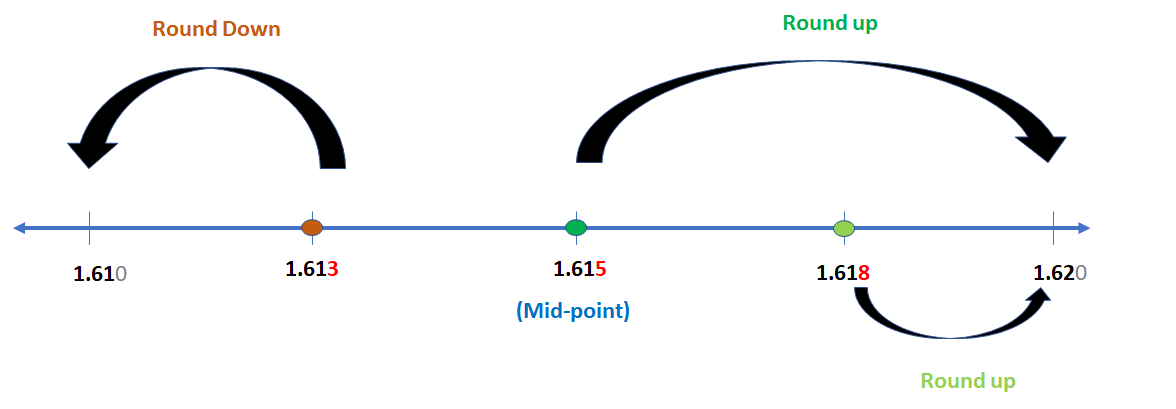
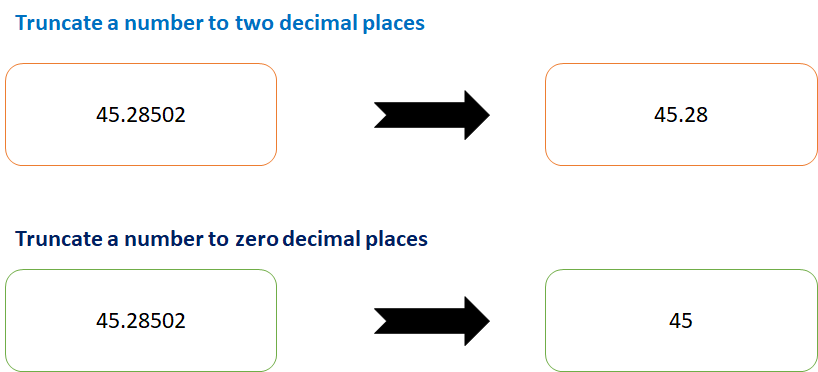
Many times in SAP ABAP, there is a requirement to Truncate, Round Down and Round Up a Decimal Number. In that case, we may use the predefined ABAP keywords to achieve the same. In this article, we will be discussing them altogether.
Introduction
We can truncate (remove decimal values), round down (5.5 to 6) and round up (5.5 to 5) in ABAP. To achieve these functionalities, ABAP has provided keywords like FLOOR, CEIL and TRUNC. These keywords are implemented in given ABAP program:
Round Down and Round Up Decimal Number in SAP ABAP – Image Illustration
Truncate, Round Down and Round Up Decimal Number in SAP ABAP – Image Illustration
ABAP Program
Data: tp_deci3 type p decimals 3,
tp_deci2 type p decimals 2.
tp_deci3 = '123.456'.
tp_deci2 = ( floor( tp_deci3 * 100 ) ) / 100. "always rounded down
Write tp_deci2.
tp_deci2 = ( ceil( tp_deci3 * 100 ) ) / 100. "Always rounded up
Write tp_deci2.
tp_deci2 = ( trunc( tp_deci3 * 100 ) ) / 100. "Truncate a number
Write tp_deci2.
Explanation
In the program, mentioned above, we have implemented following, step by step:
Initially, we have defined two variables: tp_deci3 and tp_deci2. Both of these variables are of type p i.e. packed (like float, it can have decimal values too). tp_deci3 can have 3 decimal places while tp_deci2 can have 2 decimal places.
Now, we have simply implemented the ABAP keywords: FLOOR, CEIL and TRUNC; one by one. [How it works has been illustrated via images, above].
Preface – This post is part of the ABAP Programs series.
Sometimes, there is a need to know if the number provided by user is Armstrong number. In that case we program to find Armstrong Number in ABAP. It is not a question that is merely asked in an interview but an important keyword that is used in day to day programming.
Introduction
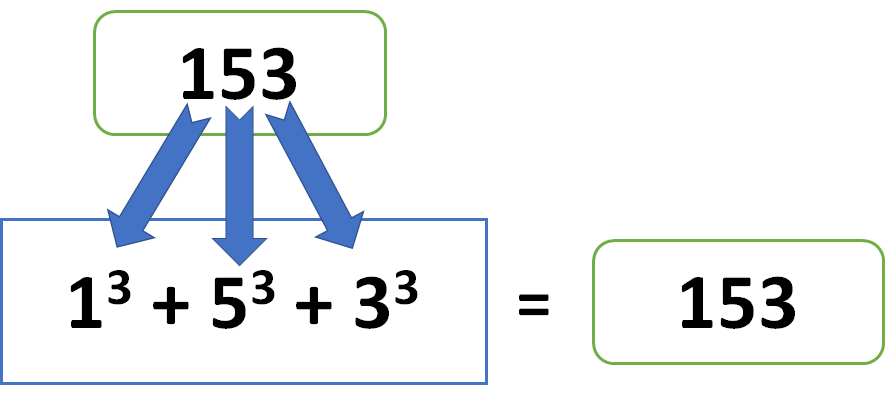
Armstrong Number is a number whose sum of cube of individual number is equal to the entire number itself.
For example: 153 = 13 + 53 + 33
This can be achieved in ABAP with the help of loop in ABAP and truncate in ABAP. The given program implements the same:
Armstrong Number – Image Illustration
ABAP Program to find Armstrong Number
PARAMETERS: lv_data1(10) type p.
Data: lv_digit(10) type i,
      lv_final(1) type i,
      lv_arm(10) type i,
      lv_data2(10) type p.
lv_data2 = lv_data1.
while lv_data2 <> 0.
    lv_digit = lv_data2 MOD 10.
    lv_arm = lv_arm + ( lv_digit  * lv_digit  * lv_digit ).
    lv_data2 = trunc( lv_data2 / 10 ).
    ENDWHILE.

If lv_data1 EQ lv_arm.
  Write: 'It is an Armstrong Number'.
  Else.
    Write: 'It is not an Armstrong Number'.
    ENDIF.
Explanation
In the program, mentioned above, we have written a mathematical algorithm. The above program is explained below, step by step:
Initially, we have defined a parameter lv_data1 of type p i.e. packed (another form of float) and length 10. This parameter will be used to take the input.
Later, we have defined four variables: lv_digit, lv_final, lv_arm, lv_data2. These variables will be used in the algorithm discussed in further step.
To find if the number is Armstrong number or not, we will have to take out each individual number from the input. Then, get the summation of their cube.
If the summation achieved in above step is equal to the original number, then we print ‘It is an Armstrong Number’ else we print ‘It is not an Armstrong Number’.
Preface – This post is part of the ABAP Programs series.
Sometimes, there is a need to check palindrome of a number provided by user. In that case we program to check palindrome in ABAP. It is not a question that is merely asked in an interview but an important keyword that is used in day to day programming.
Introduction
Palindrome Characters/String/Number are those characters which are same if reversed. 12321, MADAM are some example of Palindromes. To achieve this thing, we need to reverse that string and compare with the old value. The given program implements the same:
Program to Check Palindrome- Image Illustration
ABAP Program
PARAMETERS: lv_data1(10) type c.
Data : lv_data2(10) type c.
CALL FUNCTION 'STRING_REVERSE'
  EXPORTING
    string          =  lv_data1
    lang            = sy-langu
 IMPORTING
   RSTRING         = lv_data2
* EXCEPTIONS
*   TOO_SMALL       = 1
*   OTHERS          = 2
          .
IF lv_data1 EQ lv_data2.
Write: 'Palindrome Number'.
Else.
  Write: 'Not a Palindrome Number'.
ENDIF.
Explanation
In the program mentioned above, we have implemented following step by step:
Initially, we have defined a parameter lv_data1 of type c i.e. character of length 10. This parameter will be used to take the input.
Later, we have declared a variable lv_data2 of type c i.e. character of length 10. This variable will be used to store the reverse value of input string.
Now, we will call a function module ‘STRING_REVERSE’ that will give us the reversed string.
If the original string and reverse string are same, then output will be ‘Palindrome Number’ else it will be ‘Not a Palindrome Number’.
Preface – This post is part of the ABAP Programs series.
Sometimes, there is a need to know the power of a number provided by user. In that case we program to calculate power of number in ABAP. It is not a question that is merely asked in an interview but an important keyword that is used in day to day programming.
Introduction
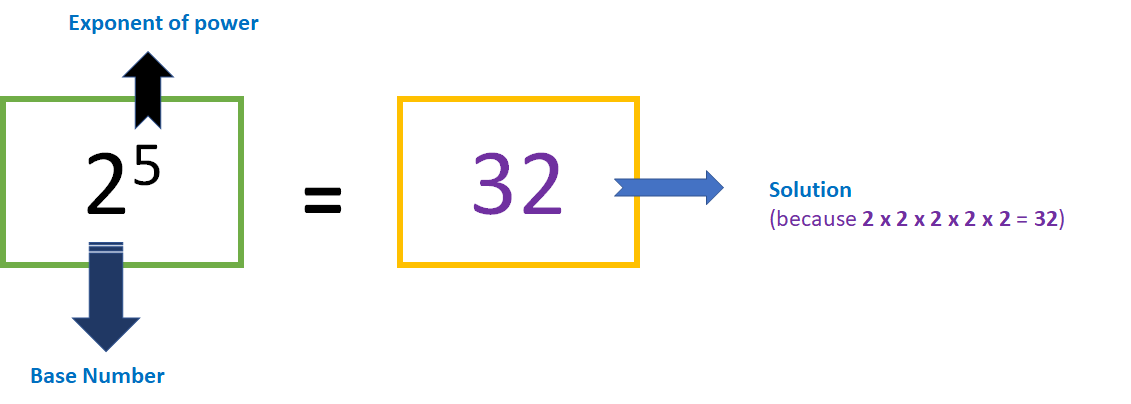
To calculate power of a number, you need to multiply that number by itself n times. Here n is the power. To achieve this thing we need to use Loops in ABAP. Following program implements the same:
Power of Number in ABAP- Illustration Image
ABAP Program
PARAMETERS: lv_data1(10) type i,
            lv_data2(10) type i.
Data lv_co_data = lv_data1 "to preserve the value.
While  lv_data2 > 1 .
lv_data1 = lv_data1 * lv_co_data.
lv_data2 = lv_data2 - 1.
ENDWHILE.
Write: lv_data1.
Explanation
In the program, mentioned above, we have implemented a while loop to get the required result. The same is explained below, step by step:
Initially, we have defined two parameters: lv_data1 and lv_data2. Both of these parameters are of type i i.e. integer and length 10. These parameters will be used to take the number (also called base number) and the power ( also called exponent of power).
Then, we will use a while loop which will run from the power value to 1.
We will keep multiplying the number with itself till the loop runs.
In this line, we will keep decreasing the value of power till it is equal to 1.
Now, we have calculated the power of the number. The output will be then printed using ABAP keyword “WRITE”.
Preface – This post is part of the ABAP Programs series.
Sometimes, there is a need to know the reverse of a string provided by user. In that case we program to reverse a string in ABAP. It is not a question that is merely asked in an interview but an important keyword that is used in day to day programming. This even helps us to find if a string is palindrome or not.
Introduction
To reverse a string, we need to call a Function Module STRING_REVERSE in ABAP program. The given program implements the same:
Program to Reverse A String- Image Illustration
ABAP Program
PARAMETERS: lv_data1(10) type c.
Data : lv_data2(10) type c.
CALL FUNCTION 'STRING_REVERSE'
  EXPORTING
    string          =  lv_data1
    lang            = sy-langu
 IMPORTING
   RSTRING         = lv_data2
* EXCEPTIONS
*   TOO_SMALL       = 1
*   OTHERS          = 2
          .
IF sy-subrc EQ 0.
Write: lv_data2.
ENDIF.
Explanation
Well, this program is self explanatory. Still, I will explain it line by line below:
Initially, we have defined a parameter lv_data1 of type c that is character of length 10. This parameter will be used to take input from user.
In the very next line, we have defined a variable lv_data2 of type c that is character of length 10. This variable will be used to store the reversed string.
Now, we will call a Function Module ‘STRING_REVERSE’ exporting lv_data1 i.e. our string and importing the RSTRING in our variable lv_data2.
That’s it, we have to now just print it as output.
Preface – This post is part of the ABAP Programs series.
Sometimes, there is a need to know the length of string provided by user. In that case we program to find string length in ABAP. It is not a question that is merely asked in an interview but an important keyword that is used in day to day programming.
Introduction
To find length of String in ABAP, you need to use a keyword STRLEN which means string length. The following program implements the same:
String Length Image Illustration
ABAP Program
PARAMETERS: lv_data1 type string.
Data : lv_data2(10) type i.
lv_data2 = strlen( lv_data1 ) . " The proper Syntax is strlen and then 'bracket open without space'
                                "  then space then Your Number/String then space then close bracket else it will give an error
Write: lv_data2.
Explanation
This program is self explanatory, still I am explaining the same step by step below:
Initially, we have defined a parameter lv_data1 of data type string. This parameter will be used to take input from user.
Then, we have defined a variable lv_data2 of data type i i.e. integer and length 10.
In this line, we have used ABAP keyword STRLEN to find the length of the string saved in variable lv_data1. The length that we have calculated is saved in variable lv_data2.