Category: ABAP Programs

  • PDF Download in ABAP

    Preface – This post is part of the ABAP Programs series.

    In this article, you will learn how to convert xstring to pdf in abap and how to use GUI_DOWNLOAD Function Module to perform pdf download in ABAP.

    Introduction

    In our previous article we have uploaded a PDF file. To view it click here. Now we will be Downloading that file into our system. To do that we need to convert the XSTRING file into a PDF file. The program shown below uses Function Module GUI_DOWNLOAD to download the file and Function Module SCMS_XSTRING_TO_BINARY to convert the XSTRING File to a Binary file which is further converted to a PDF file using GUI_DOWNLOAD Function Module.
    Program to Download PDF in ABAP

    Parameters:
      p_fname type z1127582_upload-filename lower case,
      p_path type string lower case.
    
    
    Data:
          gs_store_file type z1127582_upload,
          xstr_content type xstring,
          gt_content type standard table of tdline,
          len type i,
          str_fname type string.
    
    Start-of-selection.
    
      select single * from z1127582_upload
        into gs_store_file
        where filename = p_fname.
    
      xstr_content  = gs_store_file-file_content.
    
      "Convert xstring/rawstring to binary ITAB
      call function 'SCMS_XSTRING_TO_BINARY'
        exporting
          buffer        = xstr_content
        importing
          output_length = len
        tables
          binary_tab    = gt_content.
      .
    
      if sy-subrc <> 0.
        message 'Unable to convert xstring to binary'
          type 'E'.
      endif.
    
      str_fname = p_fname.
    
      call function 'GUI_DOWNLOAD'
        exporting
          bin_filesize            = len
          filename                = p_path
          filetype                = 'BIN'
        tables
          data_tab                = gt_content
        exceptions
          file_write_error        = 1
          no_batch                = 2
          gui_refuse_filetransfer = 3
          invalid_type            = 4
          no_authority            = 5
          unknown_error           = 6
          header_not_allowed      = 7
          separator_not_allowed   = 8
          filesize_not_allowed    = 9
          header_too_long         = 10
          dp_error_create         = 11
          dp_error_send           = 12
          dp_error_write          = 13
          unknown_dp_error        = 14
          access_denied           = 15
          dp_out_of_memory        = 16
          disk_full               = 17
          dp_timeout              = 18
          file_not_found          = 19
          dataprovider_exception  = 20
          control_flush_error     = 21
          others                  = 22.
      if sy-subrc <> 0.
        message 'Unable to download file from SAP'
          type 'E'.
      endif.

    Explanation

    Initially, we have defined variables in two parts:

    • Parameter: p_fname is the name of file and p_path stores location of file
    • gs_store_file, gt_content, len, xstr_content: data related to file i.e. where file will be store, how the content will be stored, length of the file and type of content.

    Function Module used:

    • SCMS_XSTRING_TO_BINARY
    • GUI_DOWNLOAD

    What exactly is stored in the table that will be accessed by the Function Module to perform PDF download in ABAP:

    1. PDF file location
    2. PDF file name
    3. File type
    4. File X-STRING Data [This is the actual file that is converted in x-string]

    Later on we have called different Function Modules. We have added respective comment in the code itself.

    Tutorial Video

    You can watch the video below to learn implementation:

    [embedyt] https://www.youtube.com/watch?v=AWsp0EnHKTo[/embedyt]
  • PDF Upload in ABAP

    Preface – This post is part of the ABAP Programs series.

    In this article, you will learn how to get location of a pdf file, how to convert pdf to xstring in abap and how to use GUI_UPLOAD Function Module to perform pdf upload in ABAP.

    Introduction

    To Upload a PDF using ABAP Program, you need to get the location of the file and the pdf file. You need to convert this file in XSTRING. In the code shown below, we have used GUI_UPLOAD Function module to get data in an Internal Table.

    Program to Upload PDF in ABAP

    parameters:
      p_file type string lower case.
    
    data:
          gs_store_file type z1127582_upload,"z1127582_upload is a table to store PDF file and other relevant data
          gt_content type standard table of tdline,
          len type i,
          xstr_content type xstring.
    
    DATA:
       w_filename TYPE string, " File name
       w_length TYPE i,
       lt_file_table TYPE filetable,
       lv_filelength TYPE i,
       lv_rc TYPE i,
       lv_filename TYPE string,
       w_pdf_data TYPE xstring,
       lt_rawtab TYPE TABLE OF char255,
       w_pdf_file TYPE string,
    * Create PDF Object using destination 'ADS' (<-- this is how it is
    * defined in SM59)
       lo_pdfobj TYPE REF TO if_fp_pdf_object VALUE IS INITIAL,
       xslt_message TYPE string,
       exc TYPE REF TO cx_root.
    
    
    AT SELECTION-SCREEN ON VALUE-REQUEST FOR p_file.
      PERFORM f4_help_for_file.
    
    start-of-selection.
    
      "Upload the file to Internal Table
      call function 'GUI_UPLOAD'
        exporting
          filename                = p_file
          filetype                = 'BIN'
        importing
          filelength              = len
        tables
          data_tab                = gt_content
        exceptions
          file_open_error         = 1
          file_read_error         = 2
          no_batch                = 3
          gui_refuse_filetransfer = 4
          invalid_type            = 5
          no_authority            = 6
          unknown_error           = 7
          bad_data_format         = 8
          header_not_allowed      = 9
          separator_not_allowed   = 10
          header_too_long         = 11
          unknown_dp_error        = 12
          access_denied           = 13
          dp_out_of_memory        = 14
          disk_full               = 15
          dp_timeout              = 16
          others                  = 17.
    
      if sy-subrc <> 0.
        message 'Unable to upload file' type 'E'.
      endif.
    
      "Convert binary ITAB to xstring
      call function 'SCMS_BINARY_TO_XSTRING'
        exporting
          input_length       = len
    *     FIRST_LINE         = 0
    *     LAST_LINE          = 0
       importing
         buffer             = xstr_content
        tables
          binary_tab         = gt_content
       exceptions
         failed             = 1
         others             = 2
                .
      if sy-subrc <> 0.
        message 'Unable to convert binary to xstring' type 'E'.
      endif.
    
      clear gs_store_file.
    
      gs_store_file-filename = p_file.
      gs_store_file-file_content = xstr_content.
    
      "Insert file into table
      insert z1127582_upload from gs_store_file.
    
      if sy-subrc is initial.
        message 'Successfully uploaded' type 'S'.
      else.
        message 'Failed to upload' type 'E'.
      endif.
    
    FORM f4_help_for_file.
    CALL METHOD cl_gui_frontend_services=>file_open_dialog
      CHANGING
      file_table = lt_file_table
      rc = lv_rc
    * USER_ACTION =
    * FILE_ENCODING =
      EXCEPTIONS
      file_open_dialog_failed = 1
      cntl_error = 2
      error_no_gui = 3
      not_supported_by_gui = 4
      OTHERS = 5.
      IF sy-subrc <> 0.
    * MESSAGE ID SY-MSGID TYPE SY-MSGTY NUMBER SY-MSGNO
    * WITH SY-MSGV1 SY-MSGV2 SY-MSGV3 SY-MSGV4.
      ENDIF.
    *  READ TABLE lt_file_table
    *        INTO lv_filename
    *        INDEX 1.
        READ TABLE lt_file_table
            INTO p_file
            INDEX 1.
        IF sy-subrc EQ 0.
          lv_filename = p_file.
        ENDIF.
      cl_gui_frontend_services=>gui_upload(
        EXPORTING
          filename = lv_filename
          filetype = 'BIN' "Binary
        IMPORTING
          filelength = lv_filelength
        CHANGING
          data_tab = lt_rawtab
        EXCEPTIONS
          file_open_error = 1
          file_read_error = 2
          no_batch = 3
          gui_refuse_filetransfer = 4
          invalid_type = 5
          no_authority = 6
          unknown_error = 7
          bad_data_format = 8
          header_not_allowed = 9
          separator_not_allowed = 10
          header_too_long = 11
          unknown_dp_error = 12
          access_denied = 13
          dp_out_of_memory = 14
          disk_full = 15
          dp_timeout = 16
          not_supported_by_gui = 17
          error_no_gui = 18
          OTHERS = 19 ).
    ENDFORM.


    Explanation

    Initially, we have defined variables in three parts:

    • Parameter: p_file that is of type string and will store location of file
    • gs_store_file, gt_content, len, xstr_content: data related to file i.e. where file will be store, how the content will be stored, length of the file and type of content.
    • Third set of variables deals with the PDF file content detail. These details are the one that is stored in a table and whose type internal table is created above “gs_store_file”.

    Function Module used:

    • SCMS_BINARY_TO_XSTRING
    • GUI_UPLOAD

    What exactly to store in the table via upload in ABAP:

    1. PDF file location
    2. PDF file name
    3. File type
    4. File X-STRING Data [This is the actual file that is converted in x-string]

    Later on we have called different Function Modules. We have added respective comment in the code itself.

    Tutorial Video

    You can watch the video below to learn implementation:

    [embedyt] https://www.youtube.com/watch?v=AWsp0EnHKTo[/embedyt]
  • Binary Search in ABAP

    Preface – This post is part of the ABAP Programs series.

    Binary Search in ABAP is an important topic in terms of interview question. In general, ABAP provides keyword “SEARCH” for searching purpose and that is widely used everywhere. In this article, we will learn: What is a Binary Search and how to implement it in our ABAP programs.

    What is a Binary Search?

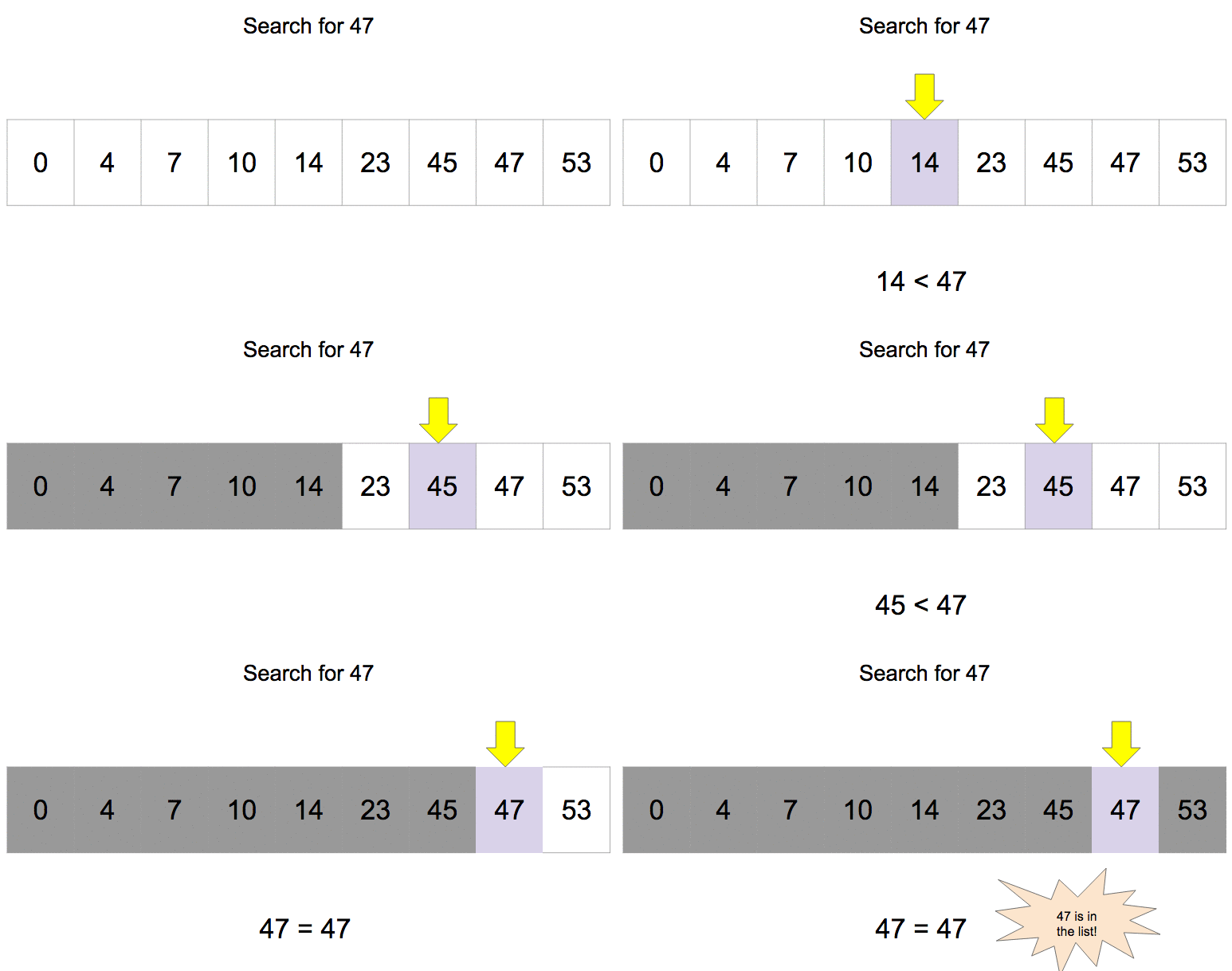
    A Binary Search is a search method in which a particular value is searched from an array (in case of ABAP, Internal Table) of values via a procedure as listed below:

    1. The whole array is firstly sorted.
    2. Then the searched value is compared with the middle value.
    3. If it is equal, then output is shown with index/position of value.
    4. If it is less than the middle value, then values after middle value is discarded and if it is greater than the middle value then the values before middle value is discarded.
    5. Repeat step 4 till we achieve step 3. If it is not achieved till end then “Not Found”  message is printed on the screen. The process is shown below using image (click on the image) and program:

    Binary Search

    Binary Search in ABAP:

    DATA : wa_data type int4,
          ITAB_data type TABLE OF int4,
          last_num type int1, " Index of Last Number
          first_num type int1 value 1, " Index of First number
          flag type int1 value 0,
          pos_length type int1.
    
    SELECTION-SCREEN BEGIN OF SCREEN 0100 . "Where we create a Screen 0100
    SELECT-OPTIONS: s_data FOR wa_data. "Seclect-Option for multiple Input
    PARAMETERS: p_input type int4.
    SELECTION-SCREEN END OF SCREEN 0100.
    DATA: wa_sdata LIKE LINE OF s_data.
    START-OF-SELECTION.
    CALL SELECTION-SCREEN 0100.
      LOOP AT s_data INTO wa_sdata.
        APPEND wa_sdata-low TO ITAB_data.
      ENDLOOP.
    
      DESCRIBE TABLE ITAB_data LINES last_num." Here we get total number of record and currently it the index of last number
      Sort ITAB_data.
      pos_length = ( last_num ) / 2 .
      while ( first_num <= last_num ).
       READ TABLE ITAB_data INTO wa_data INDEX pos_length.
       IF ( p_input = wa_data ) .
         flag = 1.
         Exit.
         ELSEIF ( p_input < wa_data ).
           last_num =  pos_length - 1.
           pos_length = ( first_num + last_num ) / 2 .
           ELSE.
             first_num = pos_length + 1.
             pos_length = ( first_num + last_num ) / 2 .
         ENDIF.
        ENDWHILE.
       IF ( Flag = 1 ).
        Write: 'Hurray! Found  your input @ position', pos_length.
        ELSE.
          Write 'Sorry! Not Found'.
        ENDIF.


    Explanation

    In the program above, initially we have defined data types: One internal tables [to store input array of data], one work area [To be used by the above mentioned internal tabls],  one variable [to save current line/index], one variable [to store current position], one variable to be used as a flag, two variable [to store first and last variable of internal table].

    We have then created a selection screen to take input and save it in an internal table. Now we will be using DESCRIBE, we will get the total number of records in that internal table. Then we will sort the internal table using “SORT” statement.

    Then we use a loop and use the algorithm steps mentioned above and set a flag as 1, if data is found. And in last, print either “Found” with position of the data or “Not Found”.

  • Linear Search in ABAP

    Preface – This post is part of the ABAP Programs series.

    Linear Search in ABAP is an important topic in terms of interview question. In general, ABAP provides keyword “SEARCH” for searching purpose and that is widely used everywhere. In this article, we will learn: What is a Linear Search and how to implement it in our ABAP programs.

    What is a Linear Search?

    A Linear Search is a search method in which a particular value is searched from an array(in case of ABAP, Internal table) of values via a procedure in which the value is compared with each of the values. The program to make a linear search in ABAP is shown below in the image and program:

    Linear Search

    Linear Search Program in ABAP

    DATA : wa_data type int4,
          ITAB_data type TABLE OF int4,
          lv_lines type int1,
          flag type int1 value 0,
          pos type int1.
    
    SELECTION-SCREEN BEGIN OF SCREEN 0100 . "Where we create a Screen 0100
    SELECT-OPTIONS: s_data FOR wa_data. "Seclect-Option for multiple Input
    PARAMETERS: p_input type int4.
    SELECTION-SCREEN END OF SCREEN 0100.
    DATA: wa_sdata LIKE LINE OF s_data.
    
    START-OF-SELECTION.
    CALL SELECTION-SCREEN 0100.
      LOOP AT s_data INTO wa_sdata.
        APPEND wa_sdata-low TO ITAB_data.
      ENDLOOP.
    
      DESCRIBE TABLE ITAB_data LINES lv_lines." Here we get total number of record
    loop at ITAB_data into wa_data.
      IF ( wa_data = p_input ).
        Flag = 1.
        pos = sy-tabix.
        EXIT.
        ENDIF.
      ENDLOOP.
      IF ( Flag = 1 ).
        Write: 'Hurray! Found  your input @ position',
                pos.
        ELSE.
          Write 'Sorry! Not Found'.
        ENDIF.
    

    Explanation

    In the program above, initially we have defined data types: One internal tables [to store input array of data], one work area [To be used by the above mentioned internal tabls],  one variable [to save current line/index], one variable [to store current position], one variable to be used as a flag.

    We have then created a selection screen to take input and save it in an internal table. Then using DESCRIBE, we will get the total number of records in that internal table. Then we use a loop and compare all the data and keep comparing the required data from them and set a flag as 1, if data is found. And in last, print either “Found” with position of the data or “Not Found”.

  • Bubble Sort in ABAP

    Preface – This post is part of the ABAP Programs series.

    Bubble Sort in ABAP is an important topic in terms of interview question. In general, ABAP provides keyword “SORT” for sorting purpose and that is widely used everywhere. In this article, we will learn: What is a bubble sorting and how to implement it in our ABAP programs.

    What is a Bubble Sorting?

    A Bubble Sorting is a way to sort given array of numbers. The sorting mechanism involves a procedure in which every value of array (in case of ABAP, Internal Table) is compared with the adjacent value and swapped in case the upper value is greater than lower value as shown in image here:

    bubble sort

    The program to perform Bubble sort in ABAP is shown below:

    DATA : ITAB_data       TYPE TABLE OF int4, "Internal Table to accept multiple data
           ITAB            TYPE TABLE OF string,
           wa_current_data type int4, " Work Area for this Internal Table
           wa_bubble_data  TYPE int4,
           lv_lines        TYPE int1,
           lv_data1        TYPE int2,
           lv_data2        TYPE int2,
           lv_current_line TYPE int1.
    
    SELECTION-SCREEN BEGIN OF SCREEN 0100 . "Where we create a Screen 0100
    SELECT-OPTIONS: s_data FOR wa_current_data. "Seclect-Option for multiple Input
    SELECTION-SCREEN END OF SCREEN 0100.
    DATA :   wa_sdata LIKE LINE OF s_data.
    
    START-OF-SELECTION. " Where we show output
      CALL SELECTION-SCREEN '0100' STARTING AT 10 10. "Where we call the Screen 0100 we created earlier.
      LOOP AT s_data INTO wa_sdata.
        APPEND wa_sdata-low TO ITAB_data.
      ENDLOOP.
    
      DESCRIBE TABLE ITAB_data LINES lv_lines." Here we get total number of record
      WHILE sy-index < lv_lines. " Loop the whole record till all data are compared
        READ TABLE ITAB_data INTO wa_bubble_data INDEX 1. "Read 1st data into a field
        LOOP AT ITAB_data INTO  wa_current_data   FROM 2 TO lv_lines - sy-index + 1. " Read data from 2nd record onwards
          lv_current_line = sy-tabix. " Gives current loop number
          IF ( wa_bubble_data > wa_current_data ). " If record no.2 > record no.1 => SWAP them
            MODIFY ITAB_data FROM wa_bubble_data INDEX lv_current_line.
            MODIFY ITAB_data FROM wa_current_data INDEX lv_current_line - 1.
          ELSE.
            wa_bubble_data = wa_current_data. " If not, 2nd record will become first and 3rd record will become 2nd record
          ENDIF.
        ENDLOOP.
      ENDWHILE.
    
      LOOP AT ITAB_data INTO wa_current_data.
        SKIP.
        WRITE : wa_current_data.
      ENDLOOP.
    

    Explanation:

    In the program above, initially we have defined data types: Two internal tables [one to store original and another sorted], two work area [To be used by these internal tables], two variables [to be used for swaping], one variable [to save current line/index].

    We have then created a selection screen to take input and save it in an internal table. Then using DESCRIBE, we will get the total number of records in that internal table. Then we use two loops [one inside another] and compare all the data and keep swaping them accordingly. And in last print the records as output that is sorted.

  • How to make ABAP Calculator Program

    Preface – This post is part of the ABAP Programs series.

    Introduction

    ABAP calculator program is just like any simple calculator which performs operation like addition, subtraction, multiplication and division.

    A Calculator in ABAP is just like any simple calculator which performs operation like addition, subtraction, multiplication and division. To perform these operation we will take two inputs from user using PARAMETERS keyword and the operation in form of Push Button/RADIO Button.

    Here in given program we have used Push Button to get the operation from user.

    PARAMETERS : p_inp1 TYPE int2,
                 p_inp2 TYPE int2.
    DATA: lv_out  TYPE int2,
          lv_sign TYPE c,
          flag    TYPE int1 VALUE 0.
    SELECTION-SCREEN :BEGIN OF SCREEN 500 TITLE TEXT-001,  "Where we create a screen with number 500
                      PUSHBUTTON /10(10) add  USER-COMMAND add,
                      PUSHBUTTON 25(10) sub USER-COMMAND sub,
                      PUSHBUTTON 40(10) mul USER-COMMAND multiply,
                      PUSHBUTTON 55(10) div USER-COMMAND divide,
    END OF SCREEN 500.
    INITIALIZATION. " Where we Initialize the value of our buttons we created above
      add = 'Add'.
      sub = 'Subtract'.
      mul = 'Multiply'.
      div = 'Division'.
    AT SELECTION-SCREEN. "Where we do calculation
      CASE sy-ucomm.
        WHEN 'ADD'.
          flag = 1.
          lv_out = p_inp1 + p_inp2.
        WHEN 'SUB'.
          flag = 1.
          lv_out = p_inp1 - p_inp2.
        WHEN 'DIVIDE'.
          IF ( p_inp2 <> 0 ).
            flag = 1.
            lv_out = p_inp1 / p_inp2.
          ELSE.
            flag = 2.
          ENDIF.
        WHEN 'MULTIPLY'.
          flag = 1.
          lv_out = p_inp1 * p_inp2.
      ENDCASE.
    START-OF-SELECTION. " Where we show output
      IF p_inp1 IS NOT INITIAL OR p_inp2 IS NOT INITIAL.
        CALL SELECTION-SCREEN '500' STARTING AT 10 10. "Where we call the Screen 500 we created earlier.
        IF flag = 1.
          WRITE: lv_out.
        ELSEIF flag = 2.
          WRITE: 'Cannot Divide a number by 0'.
        ELSEIF flag = 0.
          MESSAGE 'Press any Button to perform any operation!' TYPE 'I'.
        ENDIF.
      ELSE.
        MESSAGE 'Please give both Input to proceed!' TYPE 'I'.
      ENDIF.
    

    Line by Line Explanation of Code

    Line 1: Parameter declaration of type integer

    Line 2: Parameter declaration of type integer

    Line 3: Data declaration of type integer

    Line 4: Data declaration of type character

    Line 5: Data Declaration for Flag of type integer and value 0

    Line 6: Selection Screen Statement and creation of Screen 500

    Line 7: Creation of Push Button ‘add’ with User Command ‘create’ [User Command is used to call the button]

    Line 8: Creation of Push Button ‘sub’ with User Command ‘sub’ [User Command is used to call the button]

    Line 9: Creation of Push Button ‘mul’ with User Command ‘multiply’ [User Command is used to call the button]

    Line 10: Creation of Push Button ‘div’ with User Command ‘divide’ [User Command is used to call the button]

    Line 11: End of Selection Screen made at Line 6

    Line 12: INITIALIZATION Event [It is a predefined event of ABAP Reports]

    Line 13:  Naming the button add as ‘Add’

    Line 14: Naming the button sub as ‘Subtract’

    Line 15: Naming the button mul as ‘Multiply’

    Line 16: Naming the button div as ‘Division’

    Line 17: AT SELECTION-SCREEN Event [It is a predefined event of ABAP Reports]

    Line 18: Create of Case statement where the user input will be taken via System Variable sy-ucomm and will be the condition for further statement.

    Line 19: When user clicked button ‘ADD’ that we created in Line 7, then proceed to next statement else jump to next When condition.

    Line 22: When user clicked button ‘SUB’ that we created in Line 8, then proceed to next statement else jump to next When condition.

    Line 25: When user clicked button ‘DIVIDE’ that we created in Line 9, then proceed to next statement else jump to next When condition.

    Line 32: When user clicked button ‘MULTIPLY’ that we created in Line 10, then proceed to next statement else jump to next When condition.

    In above condition, we have then written simple mathematical statements to perform respective operations.

    That’s it, we have successfully written code for ABAP Calculator Program.

    Tutorial Video

    You can watch the below video to learn implementation:

    [embedyt] https://www.youtube.com/watch?v=mrb3SFhhWj4[/embedyt]
  • Check Prime Number or Not in ABAP Program

    Preface – This post is part of the ABAP Programs series.

    In this program you need to take input from user using PARAMETERS and find whether it is Prime or not. The number which is divisible only by 1 or by itself is called Prime number while the number which is divisible by any other number also apart from 1 and itself is not a Prime number.
    In the program(Prime Number Program in ABAP) given below we will find whether the number entered is Prime or not.

    PARAMETERS p_num TYPE int2.
    DATA: lv_check  TYPE int2 VALUE 2,
          lv_flag   TYPE int1 VALUE 0,
          lv_length TYPE c.
    IF p_num EQ 1.
      MESSAGE '1 is neither Prime nor Composite' TYPE 'I'.
    ELSEIF p_num IS INITIAL.
      MESSAGE 'Input cannot be empty or 0' TYPE 'I'.
    ELSE.
      WHILE lv_check <= p_num / 2 .
        IF ( p_num MOD lv_check ) EQ 0.
          lv_flag = 1.
          EXIT.
        ENDIF.
        lv_check = lv_check + 1.
      ENDWHILE.
      IF lv_flag EQ 0.
        WRITE 'Prime'.
      ELSE.
        WRITE 'Not Prime : Composite'.
      ENDIF.
    ENDIF.
    

    Explanation:

    Line 01: Here, we define a parameter to take an input from user, the input will be always a number.

    Line 02: Here we will define some fields that will be utilized in the program later. lv_check will be used to check if the number is divisible by any number which is less than or equal to its half or not, lv_flag will be used to set flag 0 or 1. Flag = 0 will mean, number is prime and 1 will mean, number is not prime. lv_length will be used to check the length of the number.

    Line 03: Here we will check if the number is one or not.

    Line 04: If the number was one in above step, we will give informative message popup “1 is neither Prime nor Composite”.

    Line 05: Here we will check if the number is initial or not.

    Line 06: If the number was initial in above step, we will give informative message popup “Input cannot be empty or 0”.

    Line 07: If all the above condition will fail, then we will execute the later lines.

    Line 08: Here we have added a while condition which will run until lv_check is less than or equal to the half of the entered number. It is checked, because a prime number must not be divisible to any number apart of itself and 1. To check that we divide it by all the number that is equal to or less than its half. And why half, it is because no number is divisible by a number greater than its half. E.g. 10 can never be divided by 6 i.e. greater than its half i.e. 5.

    Line 09: Here we check if the number is divisible by lv_check or not. For every number, we divide it from 2 to its half with the help of lv_check. If it divides the number, then we set the flag 1 else the flag remains 0. After every check we increment the value of lv_check until it is equal to half of the entered number.

    Line 10 and later: We have later checked if the flag is 0 or 1. And, if the flag remained 0, we show in output ‘Prime’ else ‘Not Prime : Composite’.

    That’s it, in this way we have written successfully Prime Number Program in ABAP,

  • Check Even or Odd in ABAP Program

    Preface – This post is part of the ABAP Programs series.

    To check even or odd in ABAP Program, you need to take input from user using PARAMETERS and divide it by 2. The number which when divided by 2 gives remainder zero is called Even number while the number which gives remainder one is called odd number.
    To get remainder in ABAP we use mod keyword. In the program given below we will find whether the number entered is Odd or Even .

    PARAMETERS: p_num TYPE int2.
    IF p_num IS INITIAL.
      MESSAGE 'Input cannot be empty' TYPE 'I'.
    ELSEIF p_num MOD 2 EQ 0.
      WRITE 'EVEN'.
    ELSEIF  p_num MOD 2 <> 0.
      WRITE 'ODD'.
    ENDIF.
    

    Explanation:

    Line 01: Here we have defined a parameter p_num to take input. The type of input will always be a number.

    Line 02: If the input provided by user is initial, then in Line 03 we will pop up an information message saying “Input cannot be empty”.

    Line 04: If the number provided by user is not initial and is divisible by 2, then we will give output as “Even” in Line 05.

    Line 06: If the number provided by user is not initial and is not divisible by 2, then we will give output as “Odd” in Line 07.

    That’s it, we have successfully written code to check if a given number is even or odd in ABAP Program.