Preface – This post is part of the ABAP Beginner series.
Introduction
As discussed in the earlier article i.e. Search Help in SAP ABAP, a search Help in SAP ABAP are reusable objects that are used to assign input helps (F4 helps) to screen fields. If the data for the search help is bought from combination of many elementary search help, then it will be termed as Collective Search Help.
Definition
As the name suggest a collective search help is a collection of multiple elementary search helps. It can even be a combination of elementary search help and another collective search help.
Below is the example of how it works (data exchange works):
It has an import and export parameter, the data is exchanged between the input screen template and the parameters of the assigned elementary search helps using this interface.
Steps to Create a Collective Search
Go to SE11
Search help name -> Create -> Choose a type (here, collective)
Maintenance screen of collective search help will open -> Give a short description to find your collective search help
In the definition tab -> Enter a search help parameter (can be elementary help or collective help) -> if it is an import parameter then check it and if it is an export parameter then check it.
Describe the data element to denote the types of elementary search help.
Now go to included Search help tab -> select an elementary search help
Parameter assignment-> Now system automatically maps elementary search help reference parameter to collective search help parameter -> now click on copy -> Activate.
The search help is ready to use.
Search Help Exit
When you want to use search help beyond normal hits, then we need something called Search Help Exit.
For example: For current run time data, I want to know the availability of flight seats with the prices enlisted in it. This might not be possible with the normal flow as the data would be fetched in tables containing either no of seats or costs separately.
In this case we will use Search Help Exit.
It is a well-designed function module with interface same as F4IF_SHLP_EXIT_EXAMPLE. It is called several times by the help processor.
Preface – This post is part of the ABAP Beginner series.
Introduction
As discussed in the last article i.e. Search Help in SAP ABAP, a search Help in SAP ABAP are reusable objects that are used to assign input helps (F4 helps) to screen fields. If the data for the search help is bought from a single table, structure or view and is displayed based on a condition, then it will be termed as Elementary Search Help.
Definition
As the name suggest an elementary search help reads records from a single element and that can be a table, structure or a view and based on a condition it returns records which are displayed by a dialog box.
Steps to Create an Elementary Search Help:
Go to SE11-> Choose Search Help-> Give a Name-> Click Create-> Choose types of search help-> Elementary-> (u will be directed to the maintenance screen of search help).
Elementary Search Help in SAP ABAP
Under the definition, tab give a description (It will help to get your Search Help identified).
Selection Method
One can choose a SE11 Table,
A View (Database, Projection or Help View)
If you enter a table that has a text table (language specific tables) it will automatically mention its name.
Dialog behavior
Display values immediately -> hit list displayed immediately, best suited for small entries.
Dialog with value restriction -> if the list of possible entries is large, user can limit the data to be processed to prevent system load.
Dialog depends on set of values -> If the hit list contains less than 100 entries, if the hit list contains more than 100 entries the system displays the dialog box for restricted values.
Dialog behavior
Selection parameters
Choose and select the fields through drop- down list from the selection method (tables, views) that is to be displayed in the selection screen.
IMP (Importing Parameters)
The input value/field is passed to the search help.
EXP (Exporting Parameters)
Export values back to the input help when the user selects an option or a row.
LPOS (List position)
Position on the output list (hit list) the user selects from.
SPOS (Screen position)
Position of parameters for value selection in the dialog box.
Default
To display default values (date, system-fields (values of structure SYST)).
Save -> Activate -> Test.
Use of an Elementary Search Help
Defines the standard flow of an input help.
Following components can be defined in search help.
Selection Method
Through this you can choose the data in the hit list where it can come from.
Dialog behavior
Choose the information displayed in the hit list and in the dialog box.
Selection parameters
Fields you can choose for hit lists and values to be displayed in the hit list that can be returned in screen fields.
Preface – This post is part of the ABAP Beginner series.
Introduction
Before we start with Transport Request in SAP, let us discuss basic concepts of coding environements/landscapes in SAP. In SAP ERP, we have three landscapes: Development, Quality and Production.
Development landscape is where a developer develops his/her codes/programs.
Quality landscape is where a developer/tester tests his/her codes/programs.
The production is where users actually use the programs made by developer.
These landscapes give us flexibility to develop, test and run our under-development code before actually giving to the end user. In this way we can find and fix bugs that can actually cause crashes and dumps.
Now, to make a connection between these landscapes and to transfer our code, SAP provides us something known as Transport Request.
What is a Transport Request in SAP?
A transport request is a package where a user can register changes done. It is used in order to transfer data from one installation to the other.
Whenever we do a small or major change that can be an update an SAP user has to create TR.
TR holds change tasks that can be understood by a folder that holds files.
Syntax
<SID>K<NUMBER>
SID: System ID
K: After releasing TR creates a data file and co-file where data file holds database details and co file contains controlling data.
NUMBER : Starting with 900001(randomly generated).
Category of Transport Request
A TR can hold n number of sub request tasks categorized as:
Modifiable
A task is not released yet.
One can add more tasks and complete them before TR is finally released.
Released
Tasks are completed and then it is released by the owner.
One cannot do changes and send it to the target system.
Types of Transport Request
TR is preferably created in two types, but we will discuss others too.
Workbench
TR created as workbench request is cross-client i.e. changes done for one client reflects in the other client.
It is synonymously said that this type of request is created by technical
Customizing
TR created as Customizing request is client specific i.e. changes done for one client won’t reflect the other client.
A client copy has to be created using T-CODE SCC1.
Client number can be seen next to this type of request
It is said that this type of request is created by a functional person
Preface – This post is part of the ABAP Beginner series.
Introduction
Whenever a SAP coder writes a program. At the time of execution, if it gives a dump or runtime error then SAP debugger is a tool to check your lines of codes and examine error during runtime. Debugging in SAP ABAP helps a programmer to check his program flow at runtime.
We use ABAP debugger by default after the release of SAP 7.0.
Definition
In short, we can define as:
A tool to analyze ABAP programs.
A tool to examine errors in codes during runtime.
A tool to display data objects.
A tool to understand the flow logic of codes in a program while executing.
Stepping through a program with the debugger helps you to detect and correct errors in the source code of an ABAP program.
What is a Breakpoint?
A signal which tells the runtime processor to interrupt processing and start debugging.
It gets activated when the program reaches that point.
How can we debug
By setting a breakpoint
Start the debugger by setting and managing the breakpoints and executing the code.
By running the program debugging mode
We can enter the debugging mode by using \h from any screen.
This can be done when we want to check the program from the beginning and are not familiar with the program.
Types of Breakpoints
There are two types of breakpoints:
A. Static Breakpoint
This breakpoint is not specific to a user.
To use a static breakpoint use ABAP Keyword BREAK-POINT.
Place it in the line where you want to use the breakpoint.
EXAMPLE:
PROGRAMM Z_USERDATA.
…..if sy-subrc<>0 .
BREAK-POINT.
endif.
….
If you want to set a static break-point specific to a user.
BREAK-POINT username.
NOTE:
Kindly delete the static breakpoints manually in development system itself, else it might affect the program in the production system.
B. DYNAMIC BREAKPOINT
These are breakpoints that are triggered when the program that you are running reaches a particular ABAP statement or exception class.
When debugging session is finished it gets deleted automatically.
U can set a dynamic breakpoint, either in an ABAP editor or directly in the debugger.
c.1. For setting dynamic breakpoints in ABAP editor.
c.1.1 Position the cursor on the line of source code where you want to set the break-point.
c.1.2. Go to utilities->breakpoint->Set/Stop. The system confirms that breakpoint is set.
c.2. For setting a dynamic break point in debugging mode:
c.2.1- Position the cursor on the line where you want to set the breakpoint.
c.2.2- Select the line by double -clicking it or by choosing Breakpoint-> set/delete.
NOTE: A user can set 30 dynamic breakpoints without changing the program code.
Session breakpoint Specific to a particular ABAP user session. If the user session is ended (log off sap system) all session breakpoints get deleted.
External breakpoint They are applied to the current user session as well as future user sessions.
e.1. Works in sessions initiated with RFC or HTTP requests or any other external interface.
e.2. An external breakpoint can apply to:
e.2.1.A user in the current SAP system
e.2.2. A user in the current application server of the current SAP system
e.2.3. User sessions started by a request that has a specific terminal ID.
NOTE: Session, External breakpoints can be created at runtime and can be activated/deactivated.
Special KEYS in Debugging
Debugging in SAP ABAP – Image Illustration
F5- Executes a program line by line.
F6- Executes a function module or a subroutine without entering into it.
F7- Executes a module or a program in a single step.
F8 – Executes a program directly. If there is more than one break-point, then can move to one break-point to the other.
Preface – This post is part of the ABAP Beginner series.
ABAP Field Symbols
In ABAP reports, very often you will be having a situation where you need to store single record of a table or take input from user and append that record to table, both at run-time. In this situation you will need a structure which has all the fields of that particular table with the same namespace. Every time the content of the table changes, you will have to update your structure. So, instead of using structure you can use something called workarea and field symbols that are the replica of single row of that table with same fields.
Introduction
In programming language C/C++, there is a concept of pointers. Let us understand pointers first, before understanding Field Symbols.
Pointers in C/C++:
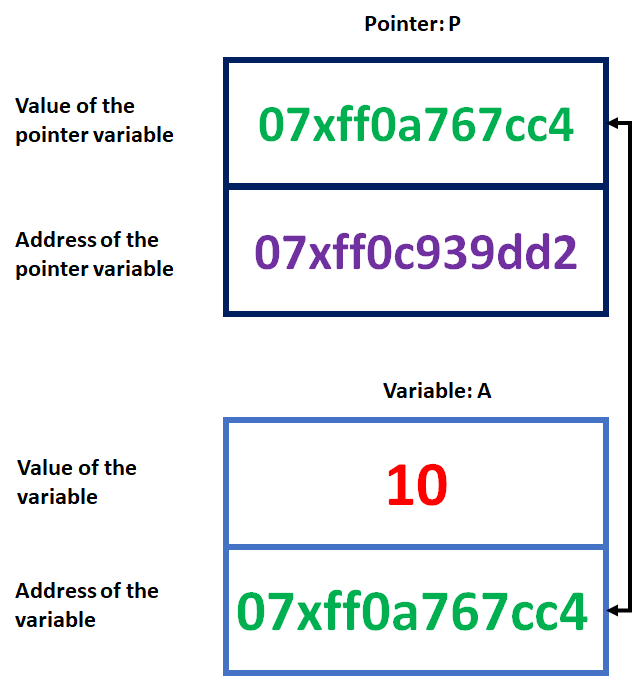
A pointer is also a variable that hold an address which is the location of another variable in memory. Since a pointer is also a variable, therefore its value is also stored in the memory in another location. In given image, we have assigned the address of a variable “A” to a pointer variable “P”. The link between the variables “P” and the variable “A” can be visualized as shown in the figure.
ABAP Field Symbols – Pointer Illustration
The address of A is 07xff0a767cc4. We can see that the value of variable “P” is the address of the variable “A”. Thus, we may access the value of “A” by using the value of “P” [how to access is explained later]. Therefore, we say that the variable “P” points to the variable “A”, hence “P” got the name ‘pointer’.
Referencing and Dereferencing Pointer:
Referencing Pointer: As the name suggest, Referencing is used for reference. A referencing pointer is the one that uses & operator (ampersand character) to set a pointer variable i.e. Address assignment of a variable to a pointer.
int a;
int* p1;
a = 11;
p1 = &a; //p1 references c1
Dereferencing Pointer: As the name suggests, Dereferencing is used to get values out of a reference. A dereferencing pointer is the one that uses * operator (asterisk character) to get the value stored at a pointer.
int b;
b = *p1; //value of b will be then 11. Since we have assigned address of a to p1 in above example
Why to use a pointer:
A pointer is used to reduce the length and complexity of a program and hence increase the execution speed.
What is a Field Symbol?
Just like a pointer discussed above, SAP also introduced something called Field-Symbols. It refers either a table, a field or even anything. When I say anything, I mean that the structure of field symbol will be determined dynamically. In simple words, a field symbol is just a pointer that is used to point a specific line of internal table.
Definition
A field symbol in ABAP is a dereferencing pointer that is mainly used to point specific lines of Internal table. It can be used to point either a table, a field or a dynamic structure. It is used as an alternative to work area to reduce the memory consumption and increase the performance of a program.
Syntax
FIELD-SYMBOLS <fs> { typing | obsolete_typing }.
The ABAP keyword FIELD-SYMBOLS is used to declare a field symbol <fs>. Fs is the part of naming convention and the mandatory angle brackets distinguish them from the other data objects.
Syntax for declaring a field symbol using different data types:
FIELD-SYMBOLS: <fs_example1> TYPE field name.
FIELD-SYMBOLS: < fs_example2> TYPE table.
FIELD-SYMBOLS: < fs_example3> TYPE REF TO DATA. "here DATA is a reference type
The keywords which are used to assign a value to the field symbol are ASSIGNING and ASSIGN.
ASSIGN <itab> [ KEY primary_key (‘…’) = ‘…’] TO <fs_example>.
It is done because, a pointer must have an address to refer, here we assign an address to the field symbol.
It is very important to check if a field symbol is assigned or not else, we will get a run-time error.
IF <FS_EXAMPLE> IS ASSIGNED.
**Your code
ENDIF.
Dynamic Field Symbol or Field-Symbols Inline-Declaration
With the introduction of inline declaration of field symbols, we don’t have to check whether it is assigned or not. Also, we don’t have to declare a field symbol directly.
Syntax:
…. FIELD-SYMBOL(<fs>) ….
Example
LOOP AT <itab> ASSIGNING FIELD-SYMBOL(<fs_line>).
*** Your Code
ENDLOOP.
Preface – This post is part of the ABAP Beginner series.
Modularization Techniques in ABAP is a way to write codes in different processing blocks like subroutine, Function Modules and ABAP objects. In this article, we will learn what is a Modularization, its types and advantages.
Introduction
The literal meaning of Modularization is “design or production of something in a separate section”. All the ABAP programs are modular in structure. This can be easily understood from ABAP Events. All these events are different blocks and are part of general execution of ABAP programs.
Apart from this internal modularization, ABAP also provides external Modularization techniques. In this external modularization technique, ABAP codes are written in different processing blocks like subroutine, Function Modules and ABAP objects, and are called from ABAP report.
These processing blocks that we call from ABAP programs are called procedures.
Modularization Techniques in ABAP – Image Illustration
Definition:
Modularization Techniques in ABAP is a way to incorporate reusability in ABAP programs. It improves the readability and maintainability of ABAP programs, prevents redundancies, incorporates reusability of functions, and the encapsulation of data.
Type of Modularization in ABAP
Following are the processing blocks that can be called from ABAP programs: 1. Subroutines
2. Function modules
3. Methods (see ABAP Objects)
Following are the modularization technique ABAP allows you to modularize source code by placing ABAP statements: 1. Local Macros
2. Global Include Programs
Advantages of Modularization in ABAP
Modularization Technique in ABAP brings following advantages to ABAP programs:
Improves the readability and maintainability of ABAP programs
Preface – This post is part of the ABAP Beginner series.
Parallel Cursor in ABAP is a way to modify the conventional nested loop in such a way that the overall performance of the ABAP program gets improved.
Introduction
Suppose we have two tables, one table has Employee basic details and another table has Employee monthly salary details. And the requirement is to print Employee Basic details with all his salaries. What a programmer will do, he will write two Loops. The first loop will get the employee basic details one by one and the other loop will get employee salary details. You can check this thing in below ABAP code:
LOOP AT zemployee_basic INTO wa_employee_basic.
LOOP AT zemployee_salary INTO wa_employee_salary where employee_id = wa_employee_basic-employee_id.
Write: wa_employee_basic-employee_id, wa_employee_salary-month, wa_employee_salary-amount.
ENDLOOP.
ENDLOOP.
The above code will work fine and will print Employee ID, Month of the Salary and Amount of the salary of each and every employee.
Parallel Cursor: Loop in Loop Image Illustration
What if you want to find Salary Amount of one person for a particular month? You will again write the same loops to find the required details.
Also, for every new Employee ID, the second Loop still goes through the whole data.
What we conclude with this process is that, this process is neither good for printing data nor good for search operation as it wastes ample amount of time.
Parallel Cursor Concept
To curb this problem, a concept called Parallel Cursor was introduced by SAP ABAP.
According to Parallel cursor concept, we need to follow following steps:
Step 01: Sort both the tables
Step 02: Write the first loop, like the previous way itself.
Step 03: Read the second table with the key that was required to search the data. This would give the first value regarding the key and also its position in the table [SY-TABIX].
Step 04: If the above step executed successfully, it means data is there in the second table associated with the key. Hence the SY-SUBRC will be set to zero. In this step we will check the value of SY-SUBRC. If it is zero, than we will proceed.
Step 05: Assign the SY-TABIX value into a local variable. We do this step to preserve the SY-TABIX value as it changes with the loop.’
Step 06: Now it’s the time to write the second loop. This time we don’t write the WHERE condition. This time we will write FROM condition with the local variable we initialized above.
Step 07: In this step we check if the key of first table is equal to the key of second table or not. If not, then exit the loop. This stops the loop from reading non required data.
Step 08: In this step we write our actual logic or print statements. And then close both the loops.
Parallel Cursor Example
Let us implement parallel cursor algorithm in the last example we discussed.
From above steps and example, it is clear that Parallel cursor is better than conventional nested loops. Actually nested loops take O(n1*n2) time to execute both the loops while parallel cursor takes O(n1+n2) time to execute the same.
Preface – This post is part of the ABAP Beginner series.
While using mobile phone and websites, you might have seen several messages popping up like security message in Mobile phones regarding photo access or antivirus message in PC regarding virus detection. All these messages can be a success, information or error message. In similar way we can showcase SAP message in ABAP programs too.
Definition
A Message in ABAP is used to display a text message either stored in table T100 or any text [can be in a message class] where type of the message can be a status, warning, error and etc. A message in ABAP can also be used to raise an exception.
SAP Message Class
Message class is a class which holds a list of messages with message id. It is created using transaction code SE91. This helps to maintain all messages related to a project/program all together.
Syntax
MESSAGE { msg | text
| tn
| tn(id)
| { ID mid TYPE mtype NUMBER num }
| {oref TYPE mtype}
| {text TYPE mtype} }
{ { [DISPLAY LIKE dtype]
[RAISING exception] }
| [INTO text] }
[WITH dobj1 … dobj4].
Syntax Explanation
The above syntax is explained below:
Syntax
Explanation
Example
msg | text
or, {text TYPE mtype}
Here msg is taken from class T100 while text is a string.
MESSAGE ‘Success Message’ TYPE ‘I’.
tn
It needs a message class. Here t is a single character and n is three digit number; both are written together. These particular tn will represent a text that is stored in message class. Here message class name is written at the starting of report.
REPORT ztest MESSAGE-ID zmessageclass.
…
MESSAGE s001.
–> Here s001 is a message having its text stored in zmessageclass.
tn(id)
Like above t and n means same. Here id is the message class name and it is written just after the message
REPORT ztest.
…
MESSAGE s001 (zmessageclass).
{ ID mid TYPE mtype NUMBER num }
Here mid means message class, mtype means type of message (explained later) and num is a message number (a number of length three)
DATA: m_id TYPE sy-msgid VALUE ‘ zmessageclass ‘,
m_type TYPE sy-msgty VALUE ‘I’, m_num TYPE sy-msgno VALUE ‘001’.
MESSAGE ID m_id TYPE m_type NUMBER m_num.
{oref TYPE mtype}
Here oref is object reference variable which points to an object whose class implements the system interface IF_T100_MESSAGE. These are mainly used when we deal with local classes inside a report.
When Display like is used, then instead of type of message the icon will be as per Display Like
MESSAGE ‘Success Message’ TYPE ‘I’ DISPLAY LIKE ‘E’.
*** Note: Above message is informative message but will be displayed as error message.
[RAISING exception]
It raises a non class based exception and only sends a message if the exception was not handled. It can be handled via sy-subrc.
CLASS-METHODS msg1 EXCEPTIONS excp1.
METHOD msg1.
MESSAGE ‘Exception msg in a Method’ TYPE ‘I’ RAISING excp1.
ENDMETHOD.
[INTO text]
This type of message does not impact on program flow and it does not matter what is the type of message. It just assigns the value of Message into a user defined field [here text].
MESSAGE i001 INTO DATA(newText).
***Note: Here newText is created dynamically and holds the value of i001 in it. This value can be used later in the same program.
[WITH dobj1 … dobj4]
This is used to add static text in place of ‘&’.
Suppose, we are bring text from table T100 and the text is “I am a &&”.
Then we can put our values in place of & & according to the situation.
MESSAGE i001 WITH ‘Good’ ‘Player’.
–> The above will return “I am a good player”.
***Note: We can even give index to ‘&’ in the table. Suppose the text was “I am a 2& 1&”.
Then the above Message will give output : “I am a player good”.
Types of SAP Message
Value
Type
Explanation
A
Termination
It is displayed in a dialog box and the program is terminated.
E
Error
It displays an error message in status bar and all the input fields are cleared.
I
Information
It is displayed in a dialog box.
S
Status
It is displayed in status bar of next screen.
W
Warning
It displays a warning message in status bar and all the input fields are cleared.
X
Exit
Exit messages cancels the running program and returns a dump.
Information Message in SAP – Image IllustrationError Message in SAP – Image IllustrationStatus Message in SAP – Image Illustration
Preface – This post is part of the ABAP Beginner series.
When we talk about Open SQL in ABAP, then it means only Data Manipulation Language (DML) part of SQL. It means we can only manipulate the table created in ABAP Dictionary using open SQL and not create a new table using SQL. The SQL statements of ABAP Reports directly communicate with a database as shown below:
SAP ABAP provides many SQL keywords that can be used as DML. These are as follow:
Keyword
Function
SELECT
It is used to fetch/ read data from database table.
INSERT
It is used to insert data into a database table.
UPDATE
Changes content of a row of database table based upon condition.
MODIFY
Same as above, Changes content of a row of database table based upon condition. But if the data is not present as per condition, then it creates/ inserts a new data in the database table.
DELETE
It deletes a row or all data based upon condition.
OPEN CURSOR,
FETCH,
CLOSE CURSOR
To read lines of database tables using cursor. In these statements we don’t fetch data from table into something but assign it to the cursor.
Preface – This post is part of the ABAP Beginner series.
Control Break statements in SAP ABAP are the are statements enclosed between AT and ENDAT. These statements help us to control a loop according to our requirement. In this article we will discuss about the four control break statements provided by SAP ABAP.
Introduction
In ABAP, there are times where we need to perform some group level processing operations only upon certain set of data. For that purpose, we can take all data from a table to an internal table and push that data into a loop [LOOP … END LOOP]. In that loop we will need something called control break statements which are enclosed between statements AT and ENDAT.
To utilize these control break statements in ABAP, we will also need some mathematical statements such as SUM, which can be used to total the numeric components of a table.
***Note: If inside a Loop you are using INTO wa, then it cannot be modified as it is overwritten with the old one when the AT-ENDAT control structure is entered. In this case use another work area to save your changes.
Types of Control Break statements in SAP ABAP
Statement
Description
AT FIRST …. ENDAT
· This is triggered for the first row of internal table or the first iteration of loop (both are same).
· As soon it is hit (AT FIRST), the value of work area are filled by ‘*’. And as soon as it hit –ENDAT, the work area is restored.
AT NEW <field_name> …. ENDAT
· This is triggered for First row of a group with the same content of internal table based on a field (here <field_name>).
AT END OF <field_name> …. ENDAT
· This is triggered for Last row of a group with the same content of internal table based on a field (here <field_name>).
AT LAST …. ENDAT
· This is triggered for the last row of internal table or the last iteration of loop (both are same).
Image Illustration
Control Break statements in SAP ABAP: At FirstAt NewAt EndAt Last