Category: ABAP

ABAP

  • PDF Upload in ABAP

    Preface – This post is part of the ABAP Programs series.

    In this article, you will learn how to get location of a pdf file, how to convert pdf to xstring in abap and how to use GUI_UPLOAD Function Module to perform pdf upload in ABAP.

    Introduction

    To Upload a PDF using ABAP Program, you need to get the location of the file and the pdf file. You need to convert this file in XSTRING. In the code shown below, we have used GUI_UPLOAD Function module to get data in an Internal Table.

    Program to Upload PDF in ABAP

    parameters:
      p_file type string lower case.
    
    data:
          gs_store_file type z1127582_upload,"z1127582_upload is a table to store PDF file and other relevant data
          gt_content type standard table of tdline,
          len type i,
          xstr_content type xstring.
    
    DATA:
       w_filename TYPE string, " File name
       w_length TYPE i,
       lt_file_table TYPE filetable,
       lv_filelength TYPE i,
       lv_rc TYPE i,
       lv_filename TYPE string,
       w_pdf_data TYPE xstring,
       lt_rawtab TYPE TABLE OF char255,
       w_pdf_file TYPE string,
    * Create PDF Object using destination 'ADS' (<-- this is how it is
    * defined in SM59)
       lo_pdfobj TYPE REF TO if_fp_pdf_object VALUE IS INITIAL,
       xslt_message TYPE string,
       exc TYPE REF TO cx_root.
    
    
    AT SELECTION-SCREEN ON VALUE-REQUEST FOR p_file.
      PERFORM f4_help_for_file.
    
    start-of-selection.
    
      "Upload the file to Internal Table
      call function 'GUI_UPLOAD'
        exporting
          filename                = p_file
          filetype                = 'BIN'
        importing
          filelength              = len
        tables
          data_tab                = gt_content
        exceptions
          file_open_error         = 1
          file_read_error         = 2
          no_batch                = 3
          gui_refuse_filetransfer = 4
          invalid_type            = 5
          no_authority            = 6
          unknown_error           = 7
          bad_data_format         = 8
          header_not_allowed      = 9
          separator_not_allowed   = 10
          header_too_long         = 11
          unknown_dp_error        = 12
          access_denied           = 13
          dp_out_of_memory        = 14
          disk_full               = 15
          dp_timeout              = 16
          others                  = 17.
    
      if sy-subrc <> 0.
        message 'Unable to upload file' type 'E'.
      endif.
    
      "Convert binary ITAB to xstring
      call function 'SCMS_BINARY_TO_XSTRING'
        exporting
          input_length       = len
    *     FIRST_LINE         = 0
    *     LAST_LINE          = 0
       importing
         buffer             = xstr_content
        tables
          binary_tab         = gt_content
       exceptions
         failed             = 1
         others             = 2
                .
      if sy-subrc <> 0.
        message 'Unable to convert binary to xstring' type 'E'.
      endif.
    
      clear gs_store_file.
    
      gs_store_file-filename = p_file.
      gs_store_file-file_content = xstr_content.
    
      "Insert file into table
      insert z1127582_upload from gs_store_file.
    
      if sy-subrc is initial.
        message 'Successfully uploaded' type 'S'.
      else.
        message 'Failed to upload' type 'E'.
      endif.
    
    FORM f4_help_for_file.
    CALL METHOD cl_gui_frontend_services=>file_open_dialog
      CHANGING
      file_table = lt_file_table
      rc = lv_rc
    * USER_ACTION =
    * FILE_ENCODING =
      EXCEPTIONS
      file_open_dialog_failed = 1
      cntl_error = 2
      error_no_gui = 3
      not_supported_by_gui = 4
      OTHERS = 5.
      IF sy-subrc <> 0.
    * MESSAGE ID SY-MSGID TYPE SY-MSGTY NUMBER SY-MSGNO
    * WITH SY-MSGV1 SY-MSGV2 SY-MSGV3 SY-MSGV4.
      ENDIF.
    *  READ TABLE lt_file_table
    *        INTO lv_filename
    *        INDEX 1.
        READ TABLE lt_file_table
            INTO p_file
            INDEX 1.
        IF sy-subrc EQ 0.
          lv_filename = p_file.
        ENDIF.
      cl_gui_frontend_services=>gui_upload(
        EXPORTING
          filename = lv_filename
          filetype = 'BIN' "Binary
        IMPORTING
          filelength = lv_filelength
        CHANGING
          data_tab = lt_rawtab
        EXCEPTIONS
          file_open_error = 1
          file_read_error = 2
          no_batch = 3
          gui_refuse_filetransfer = 4
          invalid_type = 5
          no_authority = 6
          unknown_error = 7
          bad_data_format = 8
          header_not_allowed = 9
          separator_not_allowed = 10
          header_too_long = 11
          unknown_dp_error = 12
          access_denied = 13
          dp_out_of_memory = 14
          disk_full = 15
          dp_timeout = 16
          not_supported_by_gui = 17
          error_no_gui = 18
          OTHERS = 19 ).
    ENDFORM.


    Explanation

    Initially, we have defined variables in three parts:

    • Parameter: p_file that is of type string and will store location of file
    • gs_store_file, gt_content, len, xstr_content: data related to file i.e. where file will be store, how the content will be stored, length of the file and type of content.
    • Third set of variables deals with the PDF file content detail. These details are the one that is stored in a table and whose type internal table is created above “gs_store_file”.

    Function Module used:

    • SCMS_BINARY_TO_XSTRING
    • GUI_UPLOAD

    What exactly to store in the table via upload in ABAP:

    1. PDF file location
    2. PDF file name
    3. File type
    4. File X-STRING Data [This is the actual file that is converted in x-string]

    Later on we have called different Function Modules. We have added respective comment in the code itself.

    Tutorial Video

    You can watch the video below to learn implementation:

    [embedyt] https://www.youtube.com/watch?v=AWsp0EnHKTo[/embedyt]
  • Binary Search in ABAP

    Preface – This post is part of the ABAP Programs series.

    Binary Search in ABAP is an important topic in terms of interview question. In general, ABAP provides keyword “SEARCH” for searching purpose and that is widely used everywhere. In this article, we will learn: What is a Binary Search and how to implement it in our ABAP programs.

    What is a Binary Search?

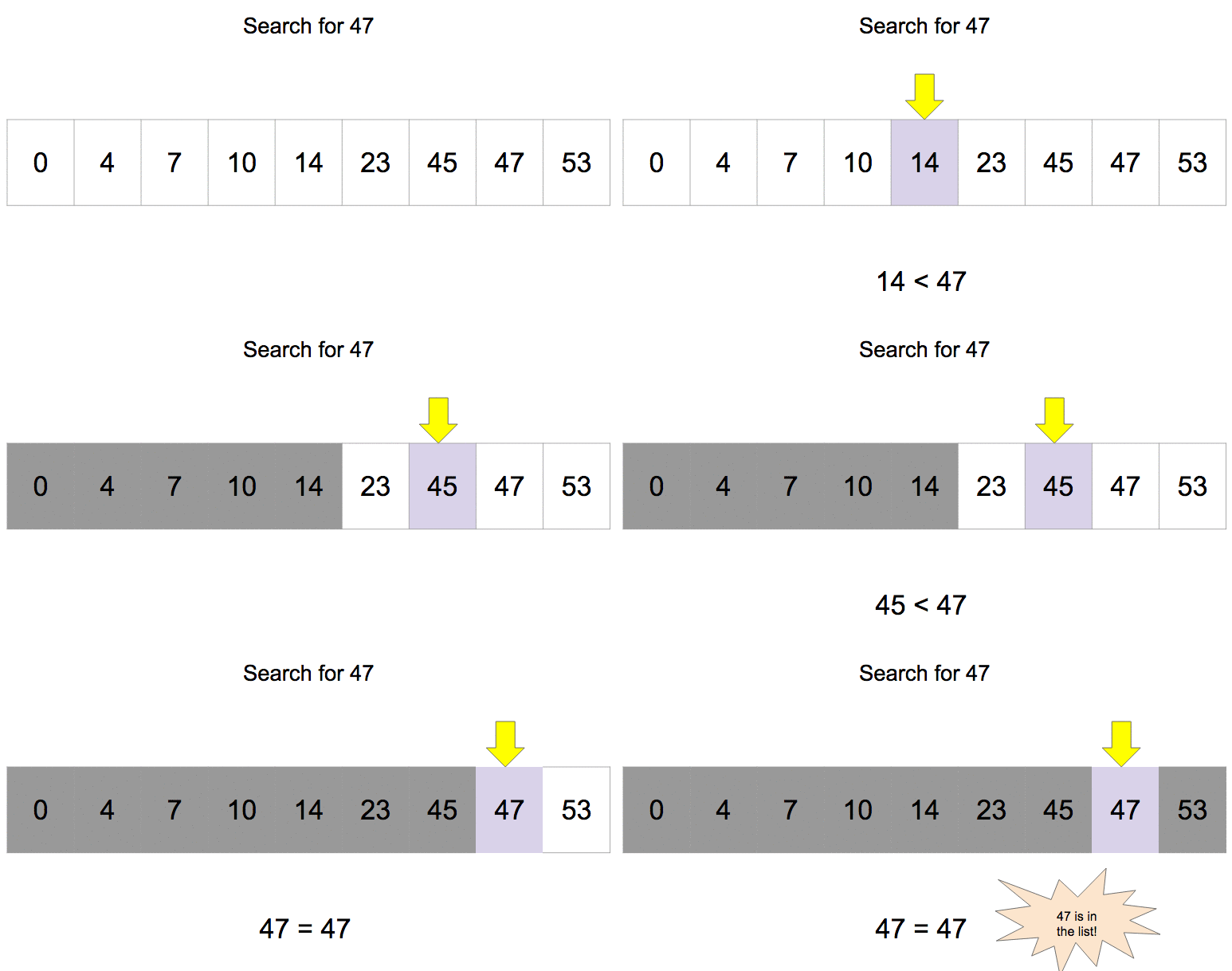
    A Binary Search is a search method in which a particular value is searched from an array (in case of ABAP, Internal Table) of values via a procedure as listed below:

    1. The whole array is firstly sorted.
    2. Then the searched value is compared with the middle value.
    3. If it is equal, then output is shown with index/position of value.
    4. If it is less than the middle value, then values after middle value is discarded and if it is greater than the middle value then the values before middle value is discarded.
    5. Repeat step 4 till we achieve step 3. If it is not achieved till end then “Not Found”  message is printed on the screen. The process is shown below using image (click on the image) and program:

    Binary Search

    Binary Search in ABAP:

    DATA : wa_data type int4,
          ITAB_data type TABLE OF int4,
          last_num type int1, " Index of Last Number
          first_num type int1 value 1, " Index of First number
          flag type int1 value 0,
          pos_length type int1.
    
    SELECTION-SCREEN BEGIN OF SCREEN 0100 . "Where we create a Screen 0100
    SELECT-OPTIONS: s_data FOR wa_data. "Seclect-Option for multiple Input
    PARAMETERS: p_input type int4.
    SELECTION-SCREEN END OF SCREEN 0100.
    DATA: wa_sdata LIKE LINE OF s_data.
    START-OF-SELECTION.
    CALL SELECTION-SCREEN 0100.
      LOOP AT s_data INTO wa_sdata.
        APPEND wa_sdata-low TO ITAB_data.
      ENDLOOP.
    
      DESCRIBE TABLE ITAB_data LINES last_num." Here we get total number of record and currently it the index of last number
      Sort ITAB_data.
      pos_length = ( last_num ) / 2 .
      while ( first_num <= last_num ).
       READ TABLE ITAB_data INTO wa_data INDEX pos_length.
       IF ( p_input = wa_data ) .
         flag = 1.
         Exit.
         ELSEIF ( p_input < wa_data ).
           last_num =  pos_length - 1.
           pos_length = ( first_num + last_num ) / 2 .
           ELSE.
             first_num = pos_length + 1.
             pos_length = ( first_num + last_num ) / 2 .
         ENDIF.
        ENDWHILE.
       IF ( Flag = 1 ).
        Write: 'Hurray! Found  your input @ position', pos_length.
        ELSE.
          Write 'Sorry! Not Found'.
        ENDIF.


    Explanation

    In the program above, initially we have defined data types: One internal tables [to store input array of data], one work area [To be used by the above mentioned internal tabls],  one variable [to save current line/index], one variable [to store current position], one variable to be used as a flag, two variable [to store first and last variable of internal table].

    We have then created a selection screen to take input and save it in an internal table. Now we will be using DESCRIBE, we will get the total number of records in that internal table. Then we will sort the internal table using “SORT” statement.

    Then we use a loop and use the algorithm steps mentioned above and set a flag as 1, if data is found. And in last, print either “Found” with position of the data or “Not Found”.

  • Linear Search in ABAP

    Preface – This post is part of the ABAP Programs series.

    Linear Search in ABAP is an important topic in terms of interview question. In general, ABAP provides keyword “SEARCH” for searching purpose and that is widely used everywhere. In this article, we will learn: What is a Linear Search and how to implement it in our ABAP programs.

    What is a Linear Search?

    A Linear Search is a search method in which a particular value is searched from an array(in case of ABAP, Internal table) of values via a procedure in which the value is compared with each of the values. The program to make a linear search in ABAP is shown below in the image and program:

    Linear Search

    Linear Search Program in ABAP

    DATA : wa_data type int4,
          ITAB_data type TABLE OF int4,
          lv_lines type int1,
          flag type int1 value 0,
          pos type int1.
    
    SELECTION-SCREEN BEGIN OF SCREEN 0100 . "Where we create a Screen 0100
    SELECT-OPTIONS: s_data FOR wa_data. "Seclect-Option for multiple Input
    PARAMETERS: p_input type int4.
    SELECTION-SCREEN END OF SCREEN 0100.
    DATA: wa_sdata LIKE LINE OF s_data.
    
    START-OF-SELECTION.
    CALL SELECTION-SCREEN 0100.
      LOOP AT s_data INTO wa_sdata.
        APPEND wa_sdata-low TO ITAB_data.
      ENDLOOP.
    
      DESCRIBE TABLE ITAB_data LINES lv_lines." Here we get total number of record
    loop at ITAB_data into wa_data.
      IF ( wa_data = p_input ).
        Flag = 1.
        pos = sy-tabix.
        EXIT.
        ENDIF.
      ENDLOOP.
      IF ( Flag = 1 ).
        Write: 'Hurray! Found  your input @ position',
                pos.
        ELSE.
          Write 'Sorry! Not Found'.
        ENDIF.
    

    Explanation

    In the program above, initially we have defined data types: One internal tables [to store input array of data], one work area [To be used by the above mentioned internal tabls],  one variable [to save current line/index], one variable [to store current position], one variable to be used as a flag.

    We have then created a selection screen to take input and save it in an internal table. Then using DESCRIBE, we will get the total number of records in that internal table. Then we use a loop and compare all the data and keep comparing the required data from them and set a flag as 1, if data is found. And in last, print either “Found” with position of the data or “Not Found”.

  • Bubble Sort in ABAP

    Preface – This post is part of the ABAP Programs series.

    Bubble Sort in ABAP is an important topic in terms of interview question. In general, ABAP provides keyword “SORT” for sorting purpose and that is widely used everywhere. In this article, we will learn: What is a bubble sorting and how to implement it in our ABAP programs.

    What is a Bubble Sorting?

    A Bubble Sorting is a way to sort given array of numbers. The sorting mechanism involves a procedure in which every value of array (in case of ABAP, Internal Table) is compared with the adjacent value and swapped in case the upper value is greater than lower value as shown in image here:

    bubble sort

    The program to perform Bubble sort in ABAP is shown below:

    DATA : ITAB_data       TYPE TABLE OF int4, "Internal Table to accept multiple data
           ITAB            TYPE TABLE OF string,
           wa_current_data type int4, " Work Area for this Internal Table
           wa_bubble_data  TYPE int4,
           lv_lines        TYPE int1,
           lv_data1        TYPE int2,
           lv_data2        TYPE int2,
           lv_current_line TYPE int1.
    
    SELECTION-SCREEN BEGIN OF SCREEN 0100 . "Where we create a Screen 0100
    SELECT-OPTIONS: s_data FOR wa_current_data. "Seclect-Option for multiple Input
    SELECTION-SCREEN END OF SCREEN 0100.
    DATA :   wa_sdata LIKE LINE OF s_data.
    
    START-OF-SELECTION. " Where we show output
      CALL SELECTION-SCREEN '0100' STARTING AT 10 10. "Where we call the Screen 0100 we created earlier.
      LOOP AT s_data INTO wa_sdata.
        APPEND wa_sdata-low TO ITAB_data.
      ENDLOOP.
    
      DESCRIBE TABLE ITAB_data LINES lv_lines." Here we get total number of record
      WHILE sy-index < lv_lines. " Loop the whole record till all data are compared
        READ TABLE ITAB_data INTO wa_bubble_data INDEX 1. "Read 1st data into a field
        LOOP AT ITAB_data INTO  wa_current_data   FROM 2 TO lv_lines - sy-index + 1. " Read data from 2nd record onwards
          lv_current_line = sy-tabix. " Gives current loop number
          IF ( wa_bubble_data > wa_current_data ). " If record no.2 > record no.1 => SWAP them
            MODIFY ITAB_data FROM wa_bubble_data INDEX lv_current_line.
            MODIFY ITAB_data FROM wa_current_data INDEX lv_current_line - 1.
          ELSE.
            wa_bubble_data = wa_current_data. " If not, 2nd record will become first and 3rd record will become 2nd record
          ENDIF.
        ENDLOOP.
      ENDWHILE.
    
      LOOP AT ITAB_data INTO wa_current_data.
        SKIP.
        WRITE : wa_current_data.
      ENDLOOP.
    

    Explanation:

    In the program above, initially we have defined data types: Two internal tables [one to store original and another sorted], two work area [To be used by these internal tables], two variables [to be used for swaping], one variable [to save current line/index].

    We have then created a selection screen to take input and save it in an internal table. Then using DESCRIBE, we will get the total number of records in that internal table. Then we use two loops [one inside another] and compare all the data and keep swaping them accordingly. And in last print the records as output that is sorted.

  • How to make ABAP Calculator Program

    Preface – This post is part of the ABAP Programs series.

    Introduction

    ABAP calculator program is just like any simple calculator which performs operation like addition, subtraction, multiplication and division.

    A Calculator in ABAP is just like any simple calculator which performs operation like addition, subtraction, multiplication and division. To perform these operation we will take two inputs from user using PARAMETERS keyword and the operation in form of Push Button/RADIO Button.

    Here in given program we have used Push Button to get the operation from user.

    PARAMETERS : p_inp1 TYPE int2,
                 p_inp2 TYPE int2.
    DATA: lv_out  TYPE int2,
          lv_sign TYPE c,
          flag    TYPE int1 VALUE 0.
    SELECTION-SCREEN :BEGIN OF SCREEN 500 TITLE TEXT-001,  "Where we create a screen with number 500
                      PUSHBUTTON /10(10) add  USER-COMMAND add,
                      PUSHBUTTON 25(10) sub USER-COMMAND sub,
                      PUSHBUTTON 40(10) mul USER-COMMAND multiply,
                      PUSHBUTTON 55(10) div USER-COMMAND divide,
    END OF SCREEN 500.
    INITIALIZATION. " Where we Initialize the value of our buttons we created above
      add = 'Add'.
      sub = 'Subtract'.
      mul = 'Multiply'.
      div = 'Division'.
    AT SELECTION-SCREEN. "Where we do calculation
      CASE sy-ucomm.
        WHEN 'ADD'.
          flag = 1.
          lv_out = p_inp1 + p_inp2.
        WHEN 'SUB'.
          flag = 1.
          lv_out = p_inp1 - p_inp2.
        WHEN 'DIVIDE'.
          IF ( p_inp2 <> 0 ).
            flag = 1.
            lv_out = p_inp1 / p_inp2.
          ELSE.
            flag = 2.
          ENDIF.
        WHEN 'MULTIPLY'.
          flag = 1.
          lv_out = p_inp1 * p_inp2.
      ENDCASE.
    START-OF-SELECTION. " Where we show output
      IF p_inp1 IS NOT INITIAL OR p_inp2 IS NOT INITIAL.
        CALL SELECTION-SCREEN '500' STARTING AT 10 10. "Where we call the Screen 500 we created earlier.
        IF flag = 1.
          WRITE: lv_out.
        ELSEIF flag = 2.
          WRITE: 'Cannot Divide a number by 0'.
        ELSEIF flag = 0.
          MESSAGE 'Press any Button to perform any operation!' TYPE 'I'.
        ENDIF.
      ELSE.
        MESSAGE 'Please give both Input to proceed!' TYPE 'I'.
      ENDIF.
    

    Line by Line Explanation of Code

    Line 1: Parameter declaration of type integer

    Line 2: Parameter declaration of type integer

    Line 3: Data declaration of type integer

    Line 4: Data declaration of type character

    Line 5: Data Declaration for Flag of type integer and value 0

    Line 6: Selection Screen Statement and creation of Screen 500

    Line 7: Creation of Push Button ‘add’ with User Command ‘create’ [User Command is used to call the button]

    Line 8: Creation of Push Button ‘sub’ with User Command ‘sub’ [User Command is used to call the button]

    Line 9: Creation of Push Button ‘mul’ with User Command ‘multiply’ [User Command is used to call the button]

    Line 10: Creation of Push Button ‘div’ with User Command ‘divide’ [User Command is used to call the button]

    Line 11: End of Selection Screen made at Line 6

    Line 12: INITIALIZATION Event [It is a predefined event of ABAP Reports]

    Line 13:  Naming the button add as ‘Add’

    Line 14: Naming the button sub as ‘Subtract’

    Line 15: Naming the button mul as ‘Multiply’

    Line 16: Naming the button div as ‘Division’

    Line 17: AT SELECTION-SCREEN Event [It is a predefined event of ABAP Reports]

    Line 18: Create of Case statement where the user input will be taken via System Variable sy-ucomm and will be the condition for further statement.

    Line 19: When user clicked button ‘ADD’ that we created in Line 7, then proceed to next statement else jump to next When condition.

    Line 22: When user clicked button ‘SUB’ that we created in Line 8, then proceed to next statement else jump to next When condition.

    Line 25: When user clicked button ‘DIVIDE’ that we created in Line 9, then proceed to next statement else jump to next When condition.

    Line 32: When user clicked button ‘MULTIPLY’ that we created in Line 10, then proceed to next statement else jump to next When condition.

    In above condition, we have then written simple mathematical statements to perform respective operations.

    That’s it, we have successfully written code for ABAP Calculator Program.

    Tutorial Video

    You can watch the below video to learn implementation:

    [embedyt] https://www.youtube.com/watch?v=mrb3SFhhWj4[/embedyt]
  • Check Prime Number or Not in ABAP Program

    Preface – This post is part of the ABAP Programs series.

    In this program you need to take input from user using PARAMETERS and find whether it is Prime or not. The number which is divisible only by 1 or by itself is called Prime number while the number which is divisible by any other number also apart from 1 and itself is not a Prime number.
    In the program(Prime Number Program in ABAP) given below we will find whether the number entered is Prime or not.

    PARAMETERS p_num TYPE int2.
    DATA: lv_check  TYPE int2 VALUE 2,
          lv_flag   TYPE int1 VALUE 0,
          lv_length TYPE c.
    IF p_num EQ 1.
      MESSAGE '1 is neither Prime nor Composite' TYPE 'I'.
    ELSEIF p_num IS INITIAL.
      MESSAGE 'Input cannot be empty or 0' TYPE 'I'.
    ELSE.
      WHILE lv_check <= p_num / 2 .
        IF ( p_num MOD lv_check ) EQ 0.
          lv_flag = 1.
          EXIT.
        ENDIF.
        lv_check = lv_check + 1.
      ENDWHILE.
      IF lv_flag EQ 0.
        WRITE 'Prime'.
      ELSE.
        WRITE 'Not Prime : Composite'.
      ENDIF.
    ENDIF.
    

    Explanation:

    Line 01: Here, we define a parameter to take an input from user, the input will be always a number.

    Line 02: Here we will define some fields that will be utilized in the program later. lv_check will be used to check if the number is divisible by any number which is less than or equal to its half or not, lv_flag will be used to set flag 0 or 1. Flag = 0 will mean, number is prime and 1 will mean, number is not prime. lv_length will be used to check the length of the number.

    Line 03: Here we will check if the number is one or not.

    Line 04: If the number was one in above step, we will give informative message popup “1 is neither Prime nor Composite”.

    Line 05: Here we will check if the number is initial or not.

    Line 06: If the number was initial in above step, we will give informative message popup “Input cannot be empty or 0”.

    Line 07: If all the above condition will fail, then we will execute the later lines.

    Line 08: Here we have added a while condition which will run until lv_check is less than or equal to the half of the entered number. It is checked, because a prime number must not be divisible to any number apart of itself and 1. To check that we divide it by all the number that is equal to or less than its half. And why half, it is because no number is divisible by a number greater than its half. E.g. 10 can never be divided by 6 i.e. greater than its half i.e. 5.

    Line 09: Here we check if the number is divisible by lv_check or not. For every number, we divide it from 2 to its half with the help of lv_check. If it divides the number, then we set the flag 1 else the flag remains 0. After every check we increment the value of lv_check until it is equal to half of the entered number.

    Line 10 and later: We have later checked if the flag is 0 or 1. And, if the flag remained 0, we show in output ‘Prime’ else ‘Not Prime : Composite’.

    That’s it, in this way we have written successfully Prime Number Program in ABAP,

  • Check Even or Odd in ABAP Program

    Preface – This post is part of the ABAP Programs series.

    To check even or odd in ABAP Program, you need to take input from user using PARAMETERS and divide it by 2. The number which when divided by 2 gives remainder zero is called Even number while the number which gives remainder one is called odd number.
    To get remainder in ABAP we use mod keyword. In the program given below we will find whether the number entered is Odd or Even .

    PARAMETERS: p_num TYPE int2.
    IF p_num IS INITIAL.
      MESSAGE 'Input cannot be empty' TYPE 'I'.
    ELSEIF p_num MOD 2 EQ 0.
      WRITE 'EVEN'.
    ELSEIF  p_num MOD 2 <> 0.
      WRITE 'ODD'.
    ENDIF.
    

    Explanation:

    Line 01: Here we have defined a parameter p_num to take input. The type of input will always be a number.

    Line 02: If the input provided by user is initial, then in Line 03 we will pop up an information message saying “Input cannot be empty”.

    Line 04: If the number provided by user is not initial and is divisible by 2, then we will give output as “Even” in Line 05.

    Line 06: If the number provided by user is not initial and is not divisible by 2, then we will give output as “Odd” in Line 07.

    That’s it, we have successfully written code to check if a given number is even or odd in ABAP Program.

  • Search Help in SAP ABAP

    Search Help in SAP ABAP

    Before we learn Search Help in SAP ABAP, let us see a daily life example first.

    In Windows PC, when you click Search Help in SAP ABAP windows_logo_image, a set of fixed options appear in front of you.

    This is something that is created to help you and you can search for the apps that you want to open. These apps are limited and are predefined and you can select only the one that is visible to you. In this way windows restrict you to select only valid apps. SAP provides similar scenario of data/record selection from a predefined fixed value. These values are created using Search Help in SE11.

    Definition

    Search Help in SAP ABAP are reusable objects that are used to assign input helps (F4 helps) to screen fields.

    This becomes mandatory when input is a formal key (In case data depends upon data of another table e.g. Registration of Employees in an event on basis of his employee ID).

    How a Search Help Works?

    We will update it soon.

    Types of Search Help in SAP ABAP

    These are the following two types of Search Helps:

    Type Description
    Elementary search helps It reads records from table, structure or view on the basis of a condition and returns those records which are displayed by a dialog box.
    Collective search helps It combines multiple Elementary search helps to provide records.


    Advantages of Search Helps

    • Search Help is a reusable component
    • It helps to avoid wrong input to the dependent table. It means a table whose records are dependent upon data of another table; any record added in that table which is not present in dependent table will not be legit.
  • PARAMETERS in SAP ABAP: Types, Syntax & Examples

    Preface – This post is part of the ABAP Beginner series.

    Parameters in SAP ABAP Report

    Have you ever worked on HTML tags where we use <INPUT> tag to get single input OR C/C++ tag where we use SCANF/CIN statement to take single input. Just like that, in ABAP PARAMETERS are used to take single input.

    Definition

    PARAMETERS are ABAP statements which are used to declare input ABAP variables in ABAP Programs/Report, variables are just like DATA statements. For every PARAMETER variable declared, an input box becomes visible on selection screen.

    Syntax

    PARAMETERS   <NAME OF YOUR PARAMETER>  [ TYPE/LIKE ]   <DATA ELEMENT/ABAP PREDEFINED DATA TYPE/REFERENCE to ABAP Table, Structure or View Field>

    Examples

    Case 01: TYPE/LIKE to DATA ELEMENT.

    PARAMETERS   P_BARRY TYPE ZBARRY_NAME.      //Here P_BARRY is a Parameter with property same as ZBARRY_NAME which is a Data Element.
    
    PARAMETERS   P_ALLEN LIKE P_BARRY.      //Here P_ALLEN is a Parameter with Property same as Parameter P_BARRY i.e. ZBARRY_NAME.


    Case 02: TYPE/LIKE to ABAP PREDEFINED DATA TYPE.

    PARAMETERS   P_BARRY(10)    TYPE C.     //Here P_BARRY is a Parameter with property of a character and length 10.
    
    PARAMETERS   P_ALLEN LIKE P_BARRY.      //Here P_ALLEN is a Parameter with Property same as Parameter P_BARRY i.e. character and length 10.


    Case 03:  REFERENCE to ABAP Table, Structure or View Field.

    DATA    CARR_ID(40) TYPE c.
    
    CARR_ID =  ‘SFLIGHT-CARRID’.
    
    PARAMETERS  P_BARRY LIKE (CARR_ID).


    *NOTE: In the above statement, the PARAMETER is just like field CARRID of table SFLIGHT. It will have all the properties (length, data type, decimal places, etc) and search help of that field.

    DEFAULT Values of a PARAMETER

    Syntax:

    PARAMETERS    <NAME OF YOUR PARAMETER>    [TYPE/LIKE]   <DATA ELEMENT/ ABAP DATA TYPES/ DDIC Field>    DEFAULT  <YOUR DEFAULT VALUE>.


    Example:

    PARAMETERS   P_NAME(20)    TYPE    C     DEFAULT    ‘BARRY ALLEN’.


    Setting PARAMETER value from Memory

    We can store values in SAP Memory. To learn more about Memories click here.

    From these memories we can get the values and set it as default in PARAMETER.

    Have you ever wondered that after viewing your table name when you come back again to SE11, its name still appears? This is possible because every time we open anything in SE11, the value of Parameter is set into memory and when we revisit the DDIC/SE11, it get the Parameter value back from memory. Let us see how we can do it too in our program.


    To Set PARAMETER value in SAP Memory:

    SET PARAMETER ID <NAME OF YOUR Memory ID>  FIELD  <Name of the field whose value will be saved>.


    Example:

    SET PARAMETER ID  pid_barry   FIELD  lv_barry.


    To Get PARAMETER value from SAP Memory:

    GET PARAMETER ID <NAME OF YOUR Memory ID>  FIELD  <Name of the field which will get the value>.


    Example:

    GET PARAMETER ID  pid_barry   FIELD  lv_barry.


    To Give Default value to Parameter from SAP Memory:

    PARAMETERS    <Name of your parameter>  [TYPE/LIKE]   <DATA TYPE/DATA ELEMENT/DDIC REFERENCE>  MEMORY ID <NAME OF YOUR Memory ID>  .


    Example:

    PARAMETER   P_NAME(20)   TYPE    C    MEMORY ID   pid_barry  .


    *NOTE: IF any of the above operation fails, SY-SUBRC becomes 4.

    Allow PARAMETER to Accept LOWER and Upper Case

    The default value of Parameter is upper case that means all input changes to upper case. You can allow lower cases using given syntax.

    Syntax:  PARAMETERS    <Name of your parameter>  [TYPE/LIKE]   <DATA TYPE/DATA ELEMENT/DDIC REFERENCE>  LOWER CASE.

    Example:

    PARAMETER   P_NAME(20)   TYPE    C    LOWER CASE  .


    Reduce Visible Length

    You can allow as many lengths of Parameter you want and also restrict the length visible to the end user using given syntax.

    Syntax:  PARAMETERS    <Name of your parameter>  [TYPE/LIKE]   <DATA TYPE/DATA ELEMENT/DDIC REFERENCE>  VISIBLE LENGTH <Your Length>.

    Example:

    PARAMETER   P_NAME(20)   TYPE    C    VISIBLE LENGTH 5  .


    Define Required/Mandatory/Obligatory Field

    Suppose you want an input the will be saved in the table as a Primary key, it means it is a required field and it cannot be left blank. To tell user that it is mandatory to fill some values in this field you will use given syntax.

    Syntax:  PARAMETERS    <Name of your parameter>  [TYPE/LIKE]   <DATA TYPE/DATA ELEMENT/DDIC REFERENCE>  OBLIGATORY.

    Example:

    PARAMETER   P_NAME(20)   TYPE    C    OBLIGATORY.


    Attach Search Help to Parameters

    Search Help were earlier called Match Code Objects in SAP ABAP. To know more about Search Help Click Here.

    A search help provides the possible values for a given parameter. To attach a search help to a parameter use the syntax given below:

    Syntax:  PARAMETERS    <Name of your parameter>  [TYPE/LIKE]   <DATA TYPE/DATA ELEMENT/DDIC REFERENCE>  MATCHCODE OBJECT <Name of your Search Help>.

    Example:

    PARAMETER   P_NAME(20)   TYPE    C     MATCHCODE OBJECT     ZBARRY_SHELP.


    Check Parameter Input against Check Table or Fixed Value

    If you want a Parameter to have input only that value that is present in the Check Table. Then you need to do three things:

    1. Make the Parameter Obligatory: The Empty value will not be in check table and hence it will be a required field.
    2. DATA TYPE will be a field from table having Check-Value Relationship.
    3. Attach a Check: A Check will ensure the presence of valid value.

    Syntax:  PARAMETERS    <Name of your parameter>  [TYPE/LIKE]   < DDIC REFERENCE>  OBLIGATORY VALUE CHECK.

    Example:

    PARAMETER   P_CARRID     TYPE    SFLIGHT-CARRID     OBLIGATORY VALUE CHECK.


    The check will compare data with check table; if not present will throw an error.


    Define Checkbox

    A Parameter can be a simple field as well as a checkbox with given syntax.

    Syntax:

    PARAMETERS    <Name of your parameter>  AS   CHECKBOX.

    Example:

     PARAMETER:   P_CHECK1     AS   CHECKBOX   .
    
    P_CHECK2     AS   CHECKBOX    DEFAULT   ‘X’  .


    Here P_CHECK2 has default value ‘X’ which means it is checked.


    Define Radio Button

    A Parameter can be a simple field, a checkbox and even a radio button.

    Syntax:  PARAMETERS    <Name of your parameter>    RADIOBUTTON GROUP     <Name of Radio button Group> .

    Example:

    PARAMETER:   P_rad1     RADIOBUTTON GROUP      rad1       DEFAULT   ‘X’  ,
    
    P_rad2     RADIOBUTTON GROUP    rad1 ,
    
    P_rad3     RADIOBUTTON GROUP    rad1 .


    The radio buttons comes under a group with one of them as a default value. A radio button group here can have maximum length four. If you do not assign the default value, the first radio button is assigned automatically. Here ‘X’ means radio button is pressed.


    Modify Input Fields

    To modify appearance of a field or a Parameter, we assign it a MODIF ID whose length can be maximum 3 characters. Now these fields will behave as a single group. And using Modify Screen statements we can modify their appearance on screen.

    SYNTAX: PARAMETERS   <Name of your parameter>    [TYPE/LIKE]    <DATA TYPE/DATA ELEMENT/DDIC REFERENCE>    MODIF ID    <Name of your MODIF ID>.

    Example:

    PARAMETERS:   P_First_name(20)    TYPE    C   MODIF ID    md1,
    
    P_Last_name(20)    TYPE    C   MODIF ID    md1.


    Hide a Parameter

    Sometimes you need a parameter but you don’t need to display it. In such case you can pass default value, or a value via INITIALIZATION, or via another Program.

    SYNTAX: PARAMETERS   <Name of your parameter>  [TYPE/LIKE]    <DATA TYPE/DATA ELEMENT/DDIC REFERENCE>  NO-DISPLAY.
  • Lock Objects in SAP ABAP

    Preface – This post is part of the ABAP Beginner series.

    Lock Objects in SAP ABAP

    Let us understand Lock Objects in SAP ABAP from a real life scenario. Have you ever booked a seat in a bus or a seat for movie online? If yes, you might have faced a situation where you were doing the booking and the seat got locked, it means the seat will be locked permanently on your name if you pay for it or will be unlocked after certain time period if you denied payment. This is an example of table lock, where the same seat cannot be booked by two different people. This feature in SAP ABAP is called Lock Objects.

    Below is the online portal of Movie tickets seat selection page.

    Lock Objects in SAP ABAP-Movie Hall Lock Seat

    Here the red seats are the permanently locked seat; green seats are the one which is locked temporarily. Lock objects locks a table temporarily till the operation is performed on the table.

    Definition

    Lock Objects in SAP ABAP are global reusable component which generates function modules that are used to set and release locks on data record. This lock mechanism is important to synchronize access of same data record by multiple programs/users.

    Function Modules Generated by Lock Objects

    1. ENQUEUE_<lock object name>: It sets the lock.
    2. (DEQUEUE_<lock object name>: It releases the lock.

    *NOTE: These FMs are automatically assigned to a Function Group; these FMs are generated every time, when you activate the locks. While transporting these locks, do not transfer either FMs or Function Group, just transfer the lock object.

    Creation of Lock Objects in SAP ABAP:

    Step 01: Open SE11.

    Step 02: Click Lock Objects Radio Button from the given radio buttons.  Give your Lock Objects name starting with EZ or EY e.g. “EZBarry_lock”.

    Note: The name of your lock object must begin with E. Here E defines Enqueue.

    Step 03: Click Create, Enter explanatory description for Lock Objects in Short Description e.g. “Lock Objects for Test”.

    Step 04: In the Attributes section, you can maintain the following:

    Field Value Description
    Package Your Package name Enter your package name, in this way all the FMs and FG will be also transferred here.
    Allow RFC Checked/ Unchecked If you Allow RFC, the generated FMs can be called from another system with Remote Function Call.


    *Note: If you enable the RFC for an existing Lock, before activating the lock object, you must ensure that the generated FMs that were called by your ABAP Programs are having the appropriate Parameters.

    Step 05: In the Tables section, you can maintain the following:

    Field Value Description
    Primary Table: The table that will be Primarily have the lock.
    Name Name of the table It is the Primary table or the main table which is being locked
    Lock Mode Select one of the option from Drop Down It controls how the lock affects table and how it is passed to the reports/user
    Secondary Table: The table that is linked with Primary table via Foreign keys relationship.
    Name Name of the table It is the table which is linked to Primary table via Foreign relationship.
    Lock Mode Select one of the option from Drop Down It controls how the lock affects table and how it is passed to the reports/user

    Lock Mode: On a single table, multiple users can set their own lock by creating their own Lock Objects, the given lock mode enables one or all of them access over the table at the same time.

    Type of Lock Lock Mode Description
    Shared Lock S ( S hared) It means several users/transactions can access locked data at the same time in display mode : Read lock
    Exclusive Lock E ( E xclusive) It means the user who has locked data, only he can unlock it  : Write lock
    Exclusive but not cumulative lock X (e X clusive non-cumulative) Two or more different lock objects can lock a table simultaneously. Once the Lock is freed by first lock object, it will be locked by second Lock object. In this case, one lock object cannot lock a table more than once simultaneously.
    Optimistic Lock O ( O ptimistic) In case more than one user is using lock for same table, but not all are changing data, it’s not good to leave table locked. An Optimistic Lock changes in to E(Exclusive) mode as soon as the user tries to save the data.


    Step 06: In the Lock Parameter section, you can maintain the following:

    Field Value Description
     W Checkbox W stands for Want, you check the parameter you want to be locked
    Lock Parameter  Field Name The field name of the table that appears as Lock Parameter name which is locked, you can change it but not recommended
    Table Table Name The table that is associated with the field name
    Field Field Name The field name of the table that is locked


    Step 07: Save it, check for Error and activate your Lock Object.


    Advantages of Lock Objects:

    1. It prevents collision of data in same record.
    2. Lock Object prevents multiple editions of same data at same time.
    3. It tells other programs/user that the table is being currently edited.

    *NOTE: There are more topics left in Lock Objects in SAP ABAP like Function Modules of Lock Objects, _SCOPE Parameters, etc that will be discussed in upcoming articles.

    [embedyt] https://www.youtube.com/watch?v=H7R7VycSqF4[/embedyt]